To complete your KYC process, please follow the steps below:
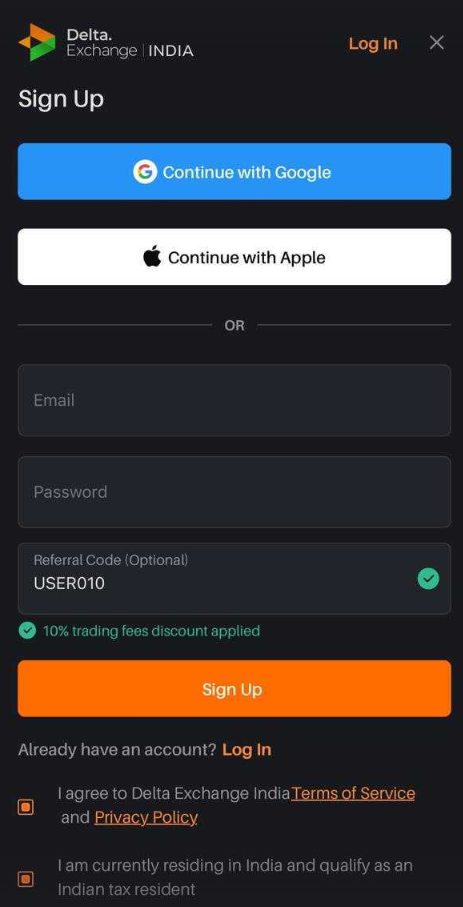
1. Click on Signup:
a) Enter your email ID.
b) Enter password you want to set.
c) Click on Sign up.
d) Enter the OTP and click "Submit"
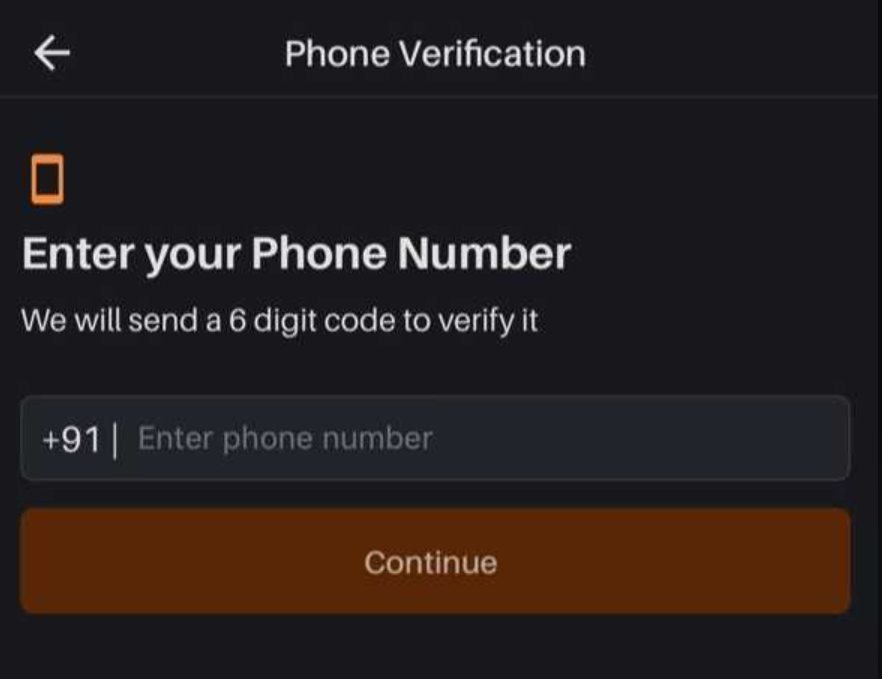
2. Phone Number Verification:
a) Enter your mobile number and click "Continue"
b) You will receive an OTP (One-time Password) via SMS.
c) Enter the OTP and click "Submit"
d) Your Phone number will be successfully verified.
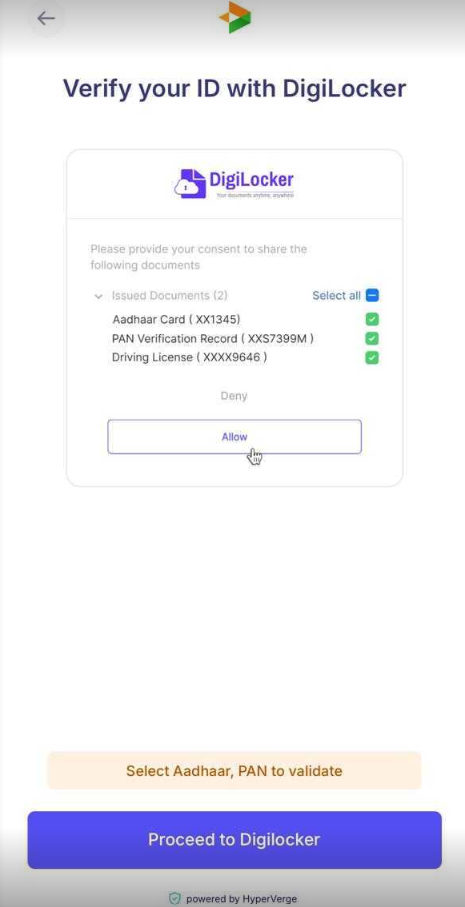
3. Account Created: Get Verified to Start Trading
a) Click on "Proceed to Digilocker".
b) Select I have Digilocker account.
c) Enter mobile number and sign in to your account via Digilocker
d) Verify with OTP and click "sign in".
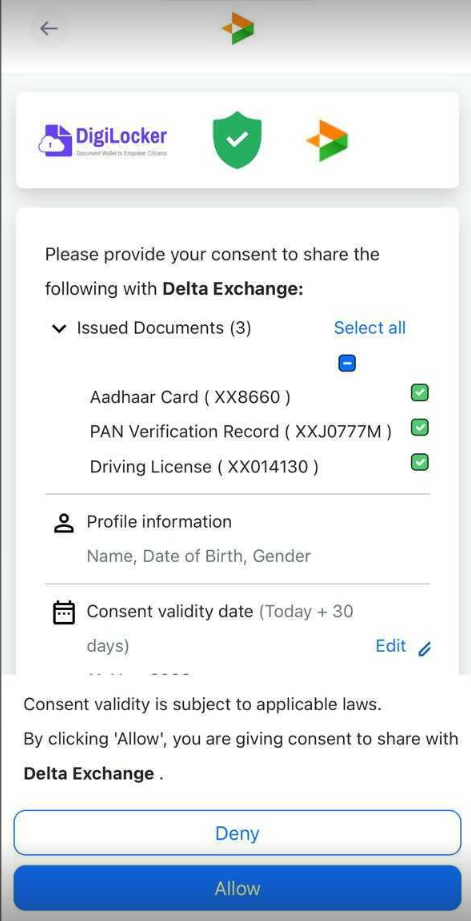
4. Aadhaar and PAN Verification:
a) Provide your consent to share the issued documents to Delta exchange.
b) Select "Allow".
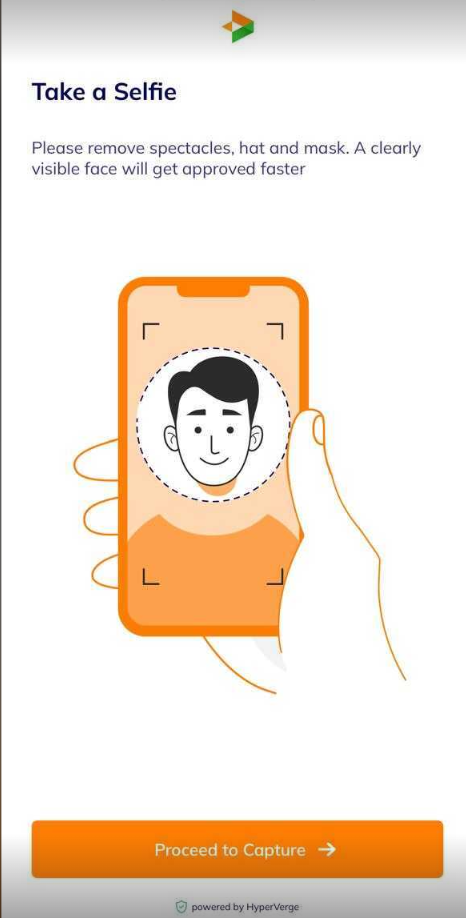
5. Selfie capture:
a) Capture a selfie with clear lighting.
b) Ensure camera permissions enabled.
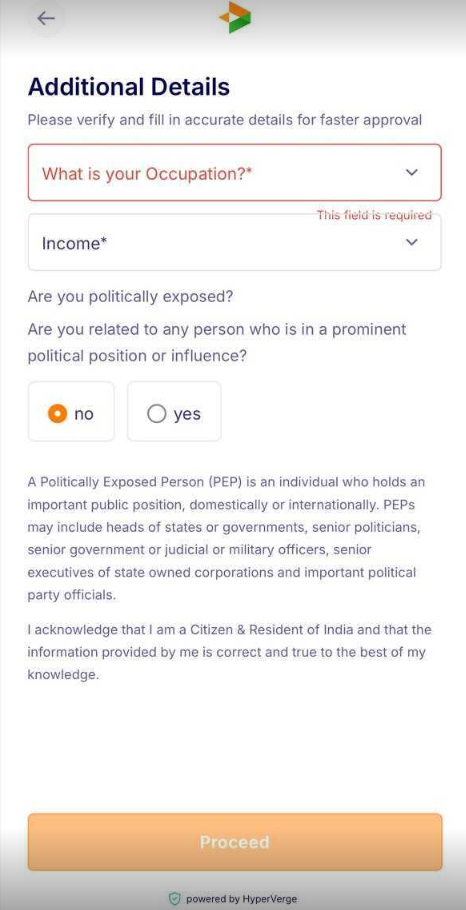
6. Fill Additional Details:
a) Confirm present Residential Address
b) Select "Occupation".
c) Choose "Income"
d) Click on "Proceed"
Once all the steps are completed your KYC will be successfully verified. Click on the link to proceed with your KYC verification now. https://india.delta.exchange/app/account/identityVerification
Error and troubleshooting steps:
Duplicate KYC error: Please note that in Delta India each email ID and mobile number can be used only once to create an account. If you reuse this information, you will get a duplicate KYC error.
To resolve this you can choose to reactivate your old account created using the above email id or mobile number in case you deleted it. To know about the reactivation process click here
If you face any issues, please feel free to contact us by raising a support ticket.