Follow these steps to create a webhook for tradingview
1. Visit the TradingBot Page through the Algo dropdown in the header.
(Note: If you haven’t set up 2FA on your account, you won’t be able to use signal trading. For more details: FAQs on 2FA

Image description: The screenshot shows the Delta Exchange India website with the Algo menu opened. Under the Algo menu, select Trading Bot to access the page for creating a TradingView webhook.
2. Enter a name for your Webhook, select the account on which you want trades to be executed. Click the check box to acknowledge you understand the risks and click Create Webhook.

Image description: The screenshot shows the Create Webhook form. It contains fields for Webhook Name, Account Name, and Source (TradingView). The user must acknowledge the trading risks by selecting the checkbox and then click Create Webhook.
3. Enter OTPs and click Submit. Check your inbox for email OTP and your authenticator app for 2FA Code.

Image description: The screenshot shows the Security Verification window with two verification fields: Email Verification for entering the OTP sent to the user's email and 2FA Code for entering the 6-digit code from the authenticator app. After entering both codes, click Submit to continue.
4. Once you click submit, you will see a message and a Webhook URL in a new popup. Copy the message using the copy button.

Image description: The screenshot shows the Webhook Created Successfully popup. It displays the TradingView Message that needs to be copied and the Webhook URL. Use the Copy button to copy the TradingView message. The popup also includes a Copy Webhook URL button. The webhook URL will not be available after leaving the page and should not be shared with anyone.
5. Open TradingView in a new tab and open the chart showing the symbol you want to trade.You can add the strategy you want to trade from Indicators > Technical on this chart, as shown in the screenshot.

Image description: The screenshot shows a TradingView chart with the Indicators, Metrics & Strategies window open. The Strategies tab is selected under Technicals, where users can search for and select the strategy they want to use for trading.
6. Once you have applied the strategy to the chart, you will be able to see its results on the strategy tester panel.

Image description: The screenshot shows the TradingView chart after a strategy has been applied. The Strategy Tester panel is open at the bottom and displays the strategy's results, including Net Profit, Total Closed Trades, Percent Profitable, Profit Factor, Max Drawdown, Avg Trade, and Avg Bars in Trades.
7.The next step is to configure the order sizing parameters. Click the Settings Button to configure your strategy.

Image description: The screenshot highlights the Settings icon next to the selected strategy in TradingView. Click this icon to open the strategy settings and configure the order sizing parameters.
8. Go to the Properties page and configure your order size. In this example, I’ll set it to 100 Quantity, and since I am trading BTCUSD, 100 contracts = 0.1 BTC on Delta Exchange
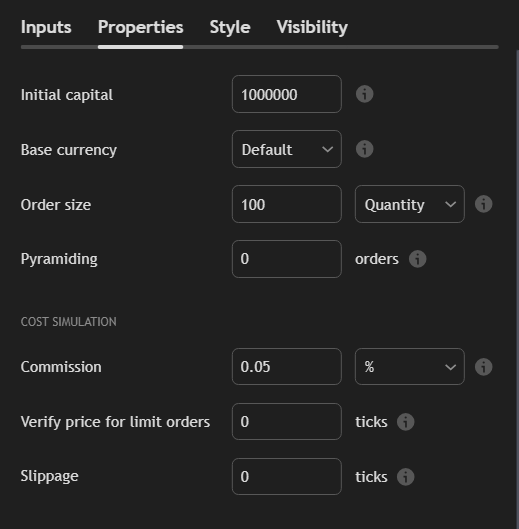
Image description: The screenshot shows the strategy Properties settings in TradingView. The Order size field is set to 100 and the unit is Quantity. For the BTCUSD example, 100 contracts correspond to 0.1 BTC on Delta Exchange. The screen also shows other settings such as Initial Capital, Base Currency, Pyramiding, and Commission.
9.Copy the message from the popup on Delta Exchange, it would look something like this: {"symbol":"{{ticker}}", "side":"{{strategy.order.action}}", "qty": {{strategy.order.contracts}}, "trigger_time":"{{timenow}}"}
10.Click on the add alert button and paste the message in the message box.


Image description: The screenshot highlights the Add alert button in TradingView for the selected strategy. Click this button to create an alert and paste the webhook message from Delta Exchange into the alert's message box. The message uses TradingView placeholders such as ticker, strategy order action, strategy order contracts, and timenow.
11. Move to the Notifications tab and paste the webhook URL

12. Click on Create Button and you are all set! Wait for the strategy to trigger a trade and it will be executed on your Delta Exchange account!
For example, when implementing a Supertrend strategy:
- Initial Position: Manually open a buy position with your desired quantity.
- Subsequent Trades: Upon a sell alert, TradingView will attempt to close the existing buy position and open a sell position. Without an initial buy position, the sell alert might result in an additional sell position instead of reversing the existing one.
You can start trading via TradingBot with no additional costs.