Trading Bot sends your TradingView alerts to Delta Exchange and places the matching order in your account. The use of Trading Bot is free.
If an alert fires on TradingView but no order is placed on Delta Exchange, see Common Webhook Errors at the end of this article for the usual causes and how to fix them.
Before you start
2FA is mandatory. If 2FA is not set up, Trading Bot shows a Setup 2FA overlay on the Create Webhook form. Complete 2FA first. For more details, see Enable 2FA.
TradingView webhook alerts need Essential plan or higher on TradingView. First-time webhook users see this note on the Create Webhook form.
Create the webhook on Delta Exchange (web or mobile), then create the alert on TradingView desktop. TradingView does not support webhook configuration on mobile.
Follow these steps to create a webhook on Delta Exchange and connect it to a TradingView alert :-
Part 1 — Create the webhook on Delta Exchange
Step 1. Open Trading Bot
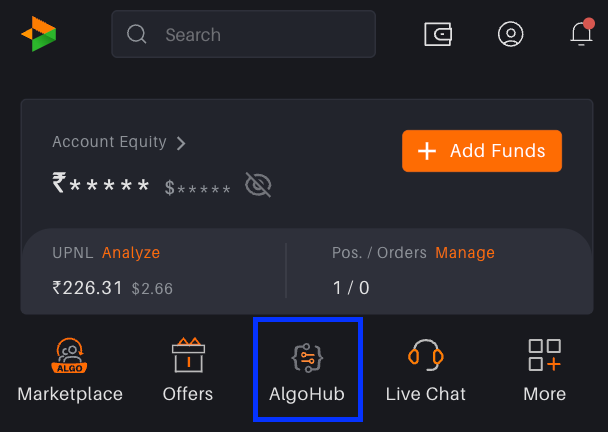
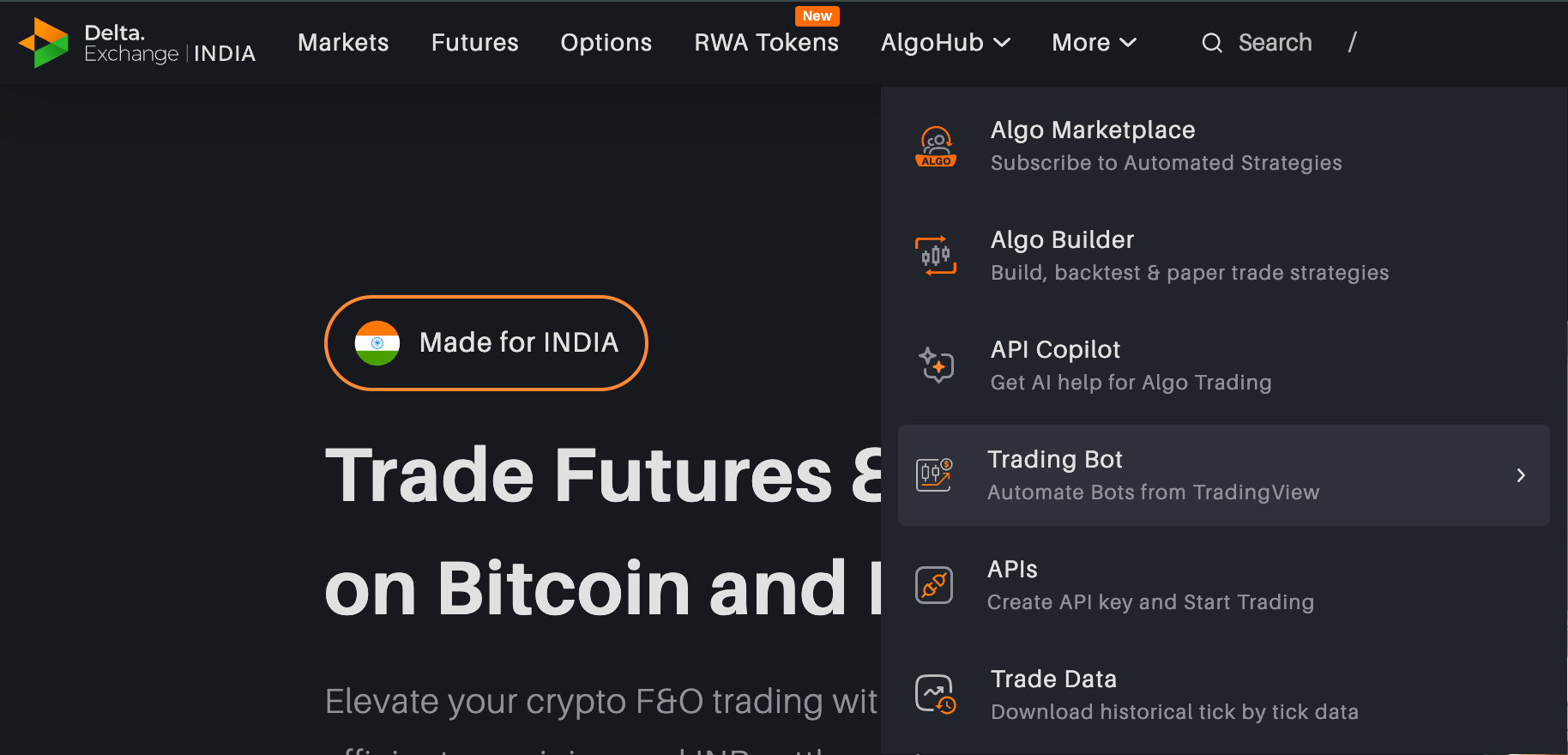
Open AlgoHub on the homepage and select Trading Bot.
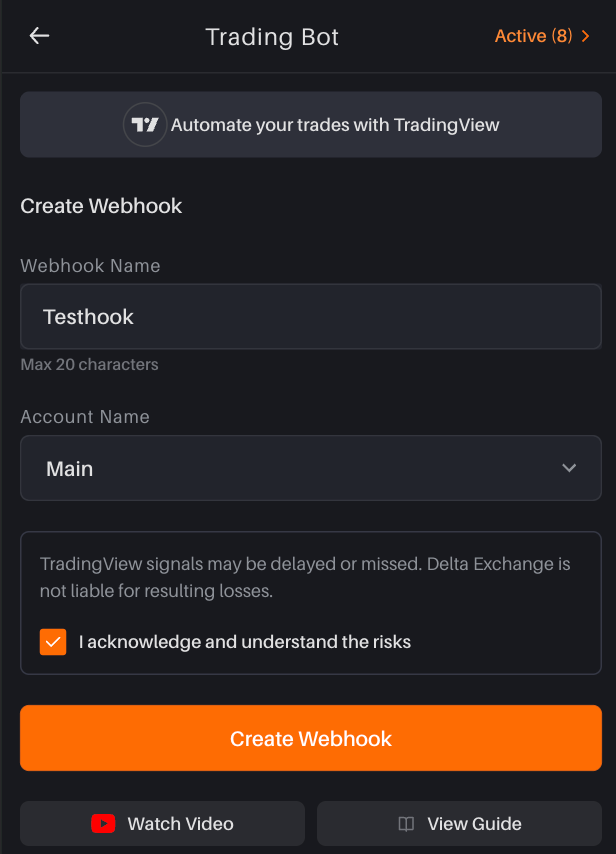
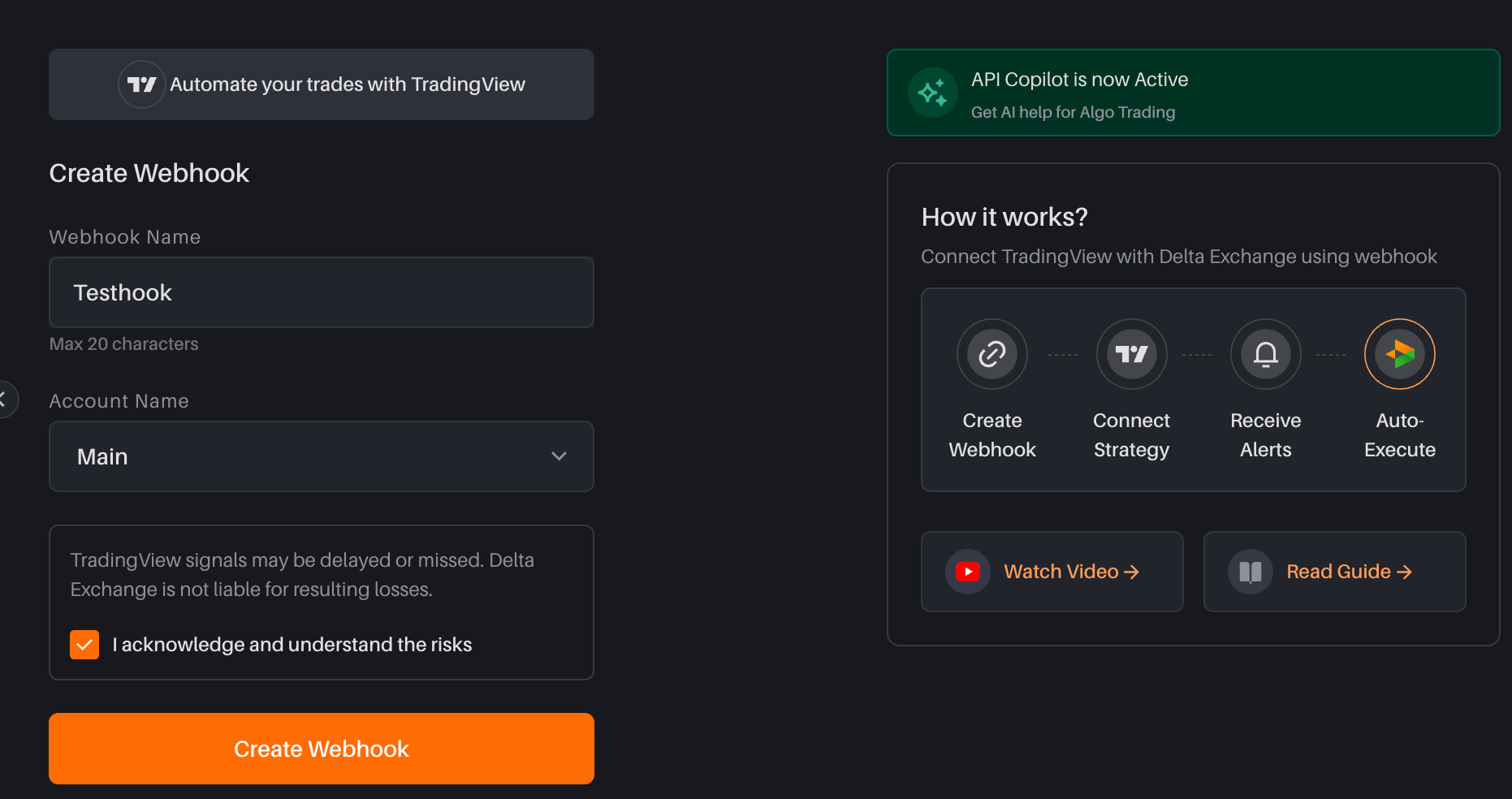
You land on the Create Webhook page. On a desktop, How it works? guide sits next to the form. On mobile, use View Guide for the same steps. You can tap on Watch Video for the tutorial.
If you already have webhooks, Active (n) appears at the top right (mobile header, or on the form). Tap it to open your saved webhooks. It is hidden when you have none.
Step 2. Fill the Create Webhook form
Enter a Webhook Name (up to 20 characters).
Select the Account Name where trades should execute. By default this is the account you are logged into.
Logged in as Main: the dropdown lists the main plus all sub-accounts. Main account can create a webhook for a sub-account.
Logged in as a sub-account, or switched into a sub-account: the dropdown shows only that sub-account. A sub-account cannot create a webhook for the main account or for other subs.
Read the disclaimer: TradingView signals may be delayed or missed. Delta Exchange is not liable for resulting losses.
Tick I acknowledge and understand the risks.
Tap Create Webhook. The button stays disabled until the name is filled and the checkbox is ticked.
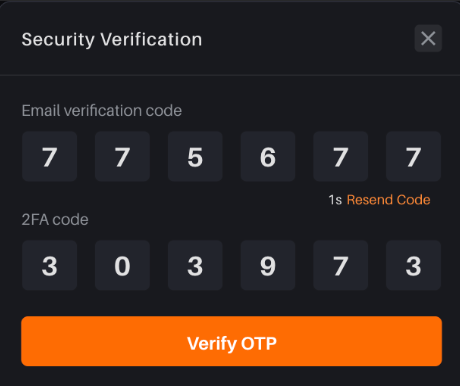
Step 3. Verify with email OTP and 2FA
A Security Verification popup opens.
Enter the email OTP sent to your inbox.
Enter the 2FA code from your authenticator app.
Tap Submit.
If you didn’t receive verification code on email, check your spam folder. Also mark the email as ‘Not spam’
Step 4. Copy the alert message and webhook URL
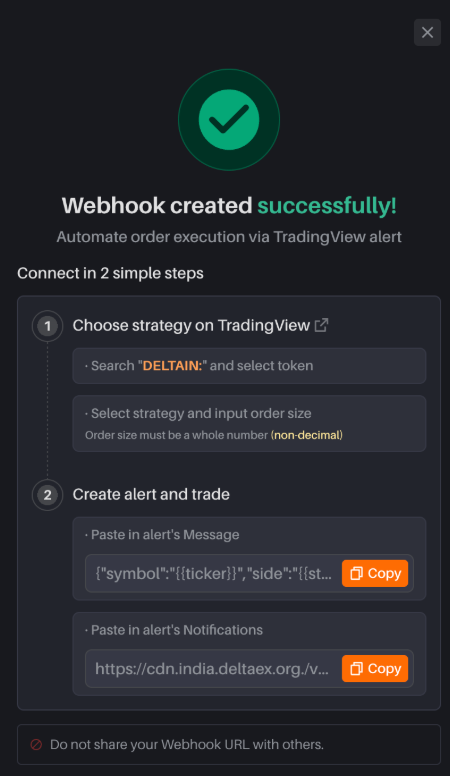
On success you see Webhook created successfully! — Automate order execution via TradingView alert.
Connect in 2 simple steps
1. Choose strategy on TradingView (arrow opens TradingView in a new tab)
Search DELTAIN: and select your token.
Select your strategy and input order size. Order size must be a whole number (non-decimal).
2. Create alert and trade
Paste in alert's Message — tap Copy on the JSON template.
Paste in alert's Notifications — tap Copy on the webhook URL.
Do not share your webhook URL with anyone. After you close this popup you can get both values again from Active → Details (you will need email code & 2FA again).
Part 2 — Create the alert on TradingView (desktop)
TradingView alert setup is desktop only. Screenshot slots below are still side by side so you can drop the desktop shot in; leave mobile blank or mark N/A.
Step 5. Open the Delta India chart
From the success popup, tap the arrow on Choose strategy on TradingView. TradingView opens (typically on DELTAIN:BTCUSD.P).
If you open TradingView yourself:
Go to https://in.tradingview.com/
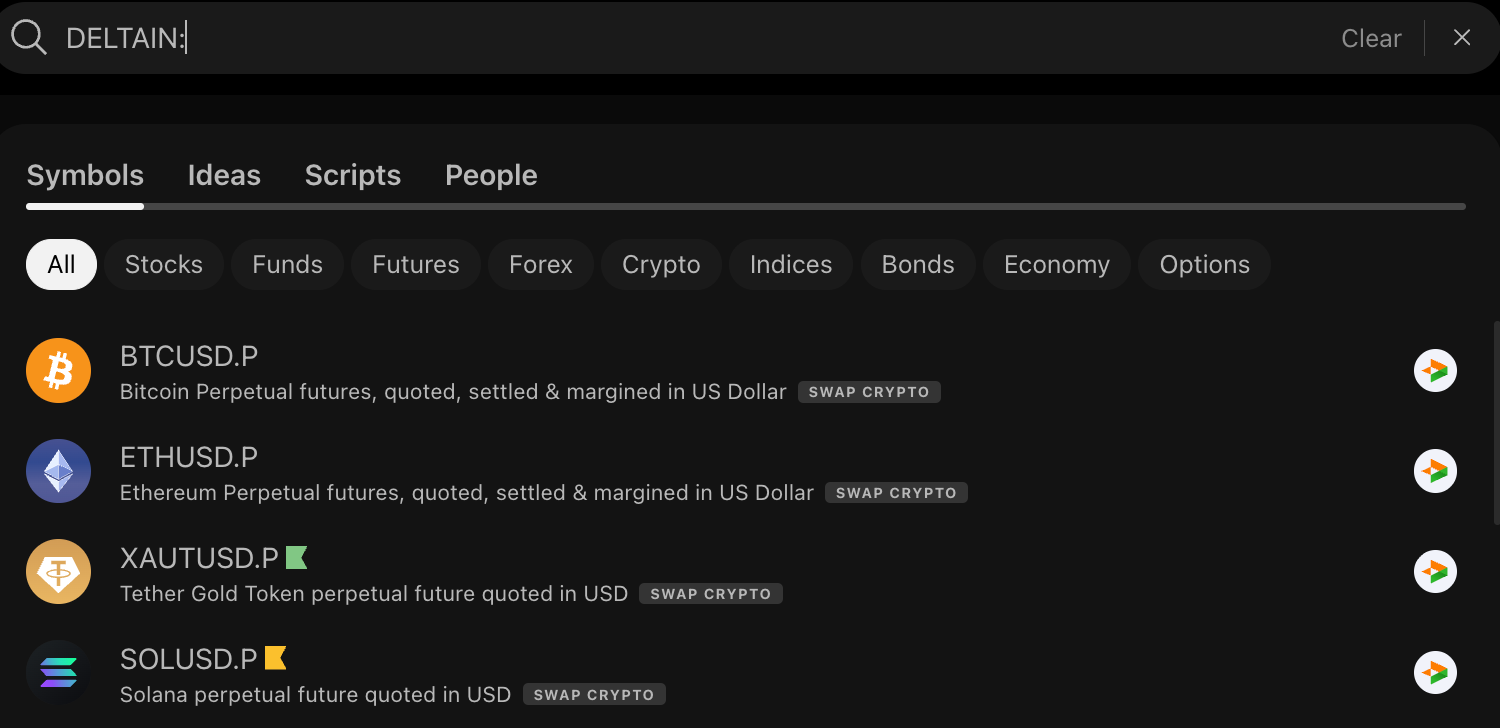
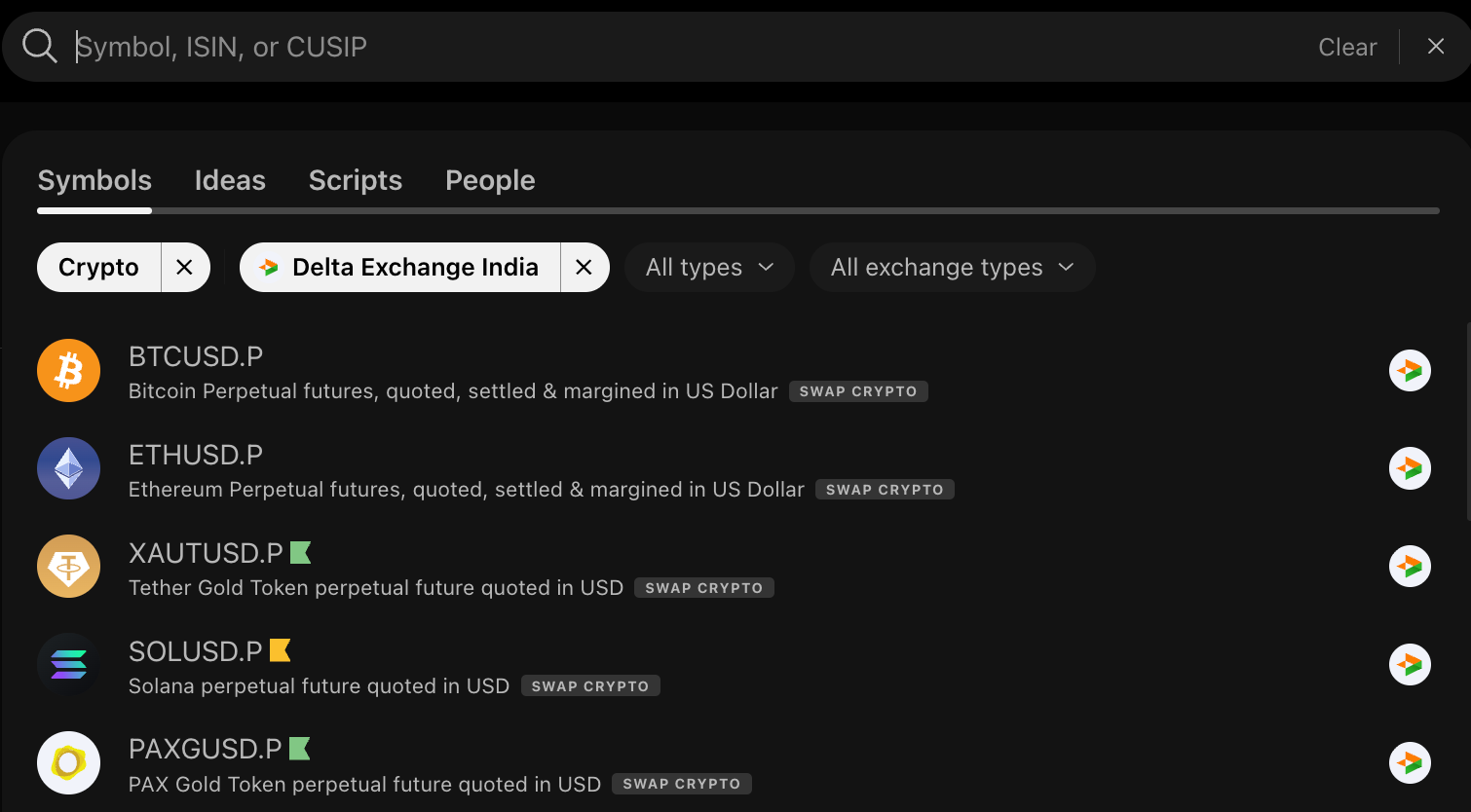
In the search box, type DELTAIN: (this prefix is required — it is for selecting broker as Delta Exchange India). Alternatively, you can filter in search for Crypto and select in source as Delta Exchange India.
Select the contract you will trade, for example BTCUSD.P or ETHUSD.P.
Step 6. Add your strategy and set order size
On the chart, open Indicators.
Under Technicals, open Strategies and apply the strategy you want (or add your own Pine strategy).
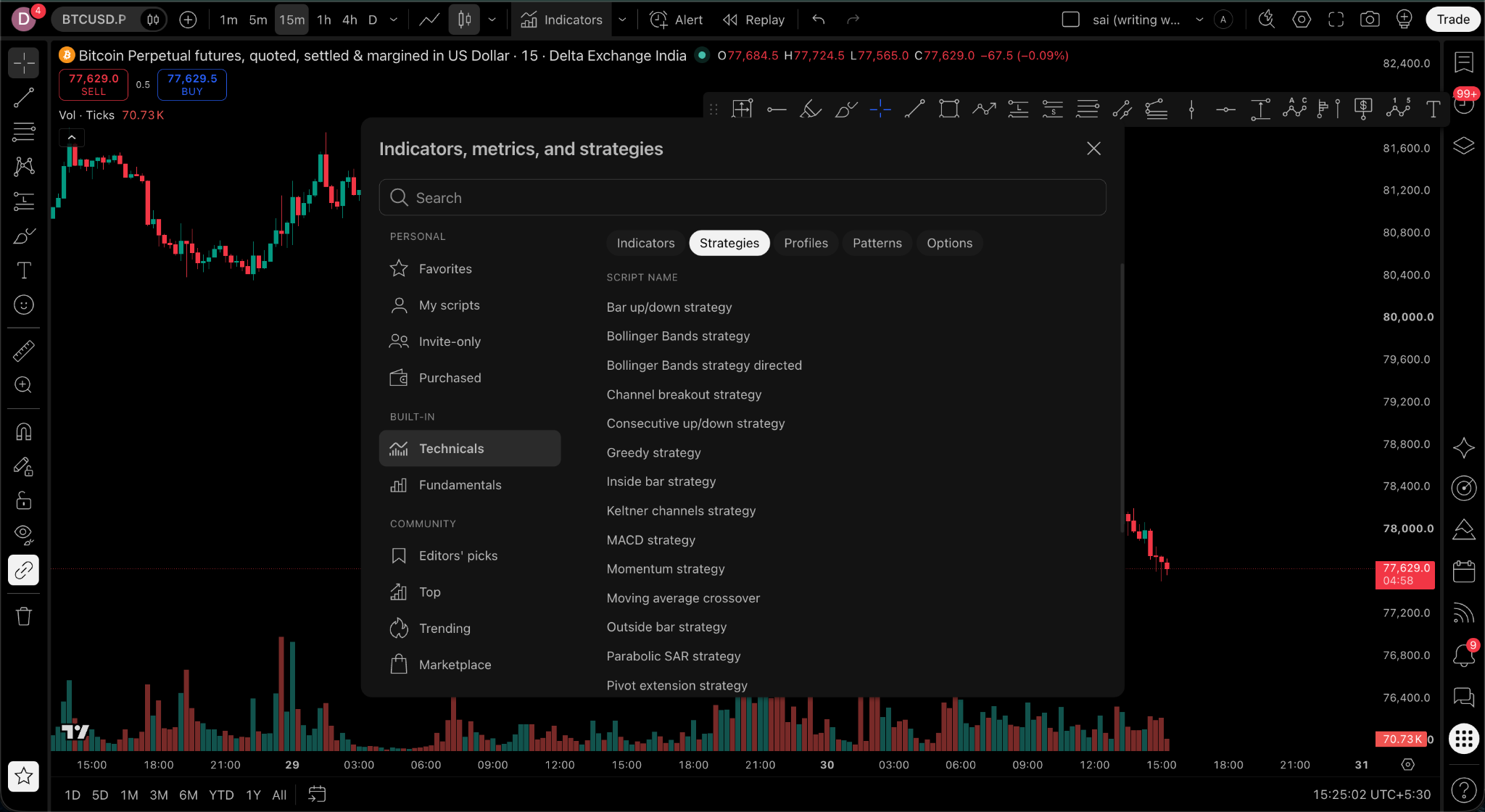
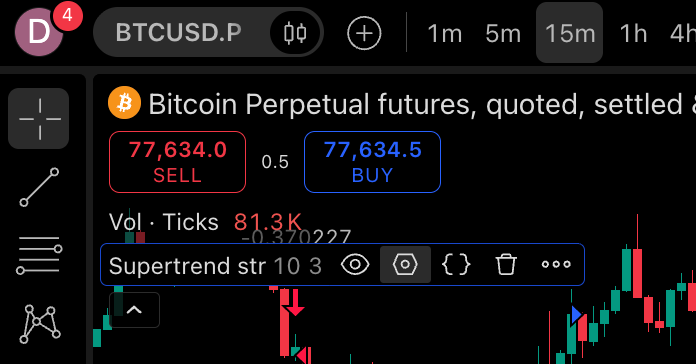
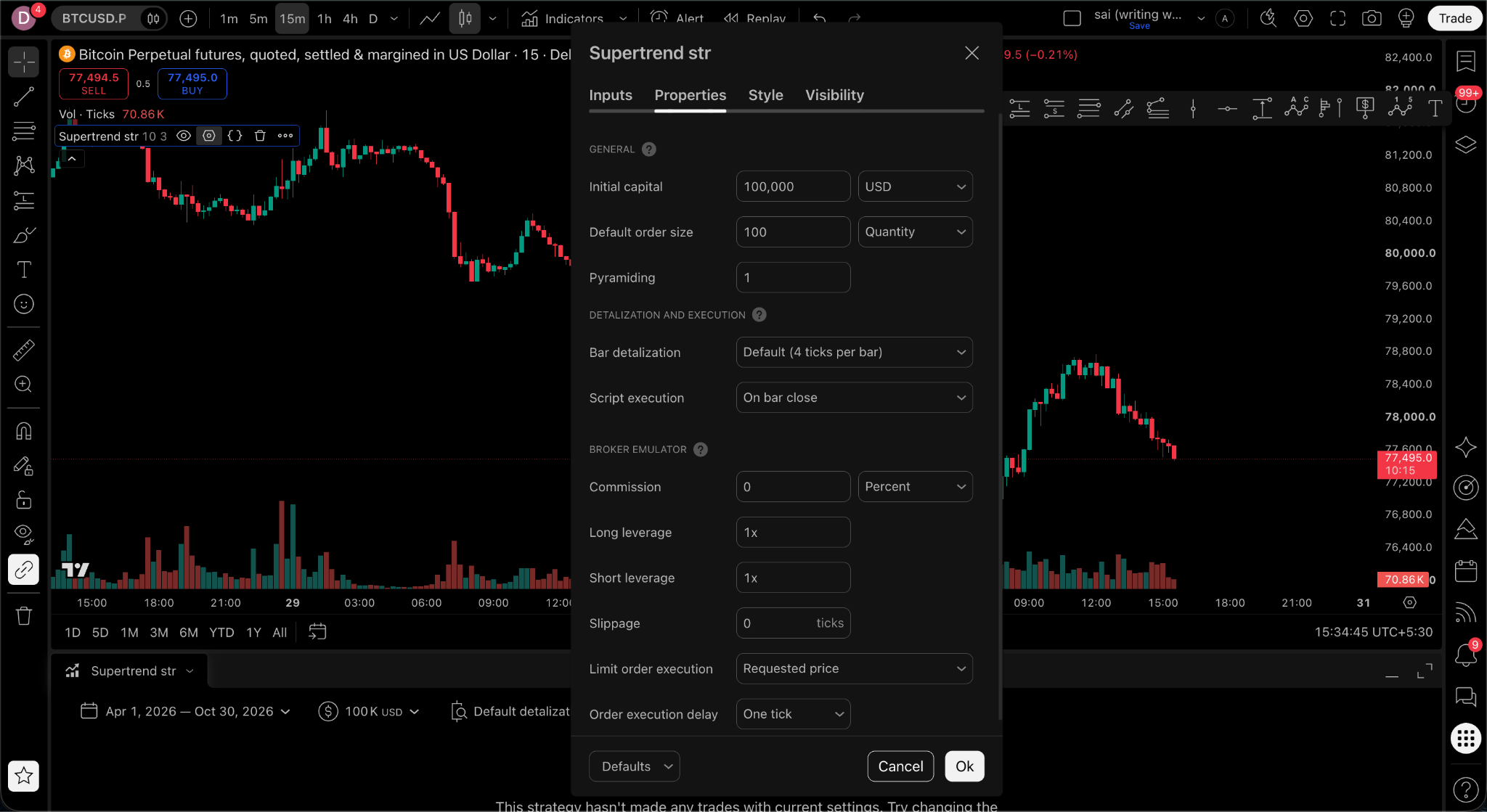
Confirm it on the chart. Click the Settings (gear) icon next to the strategy name.
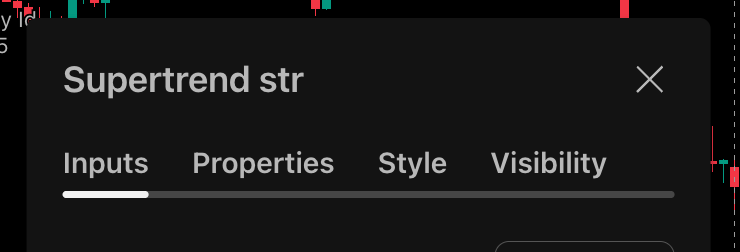
Open strategy’s Properties.
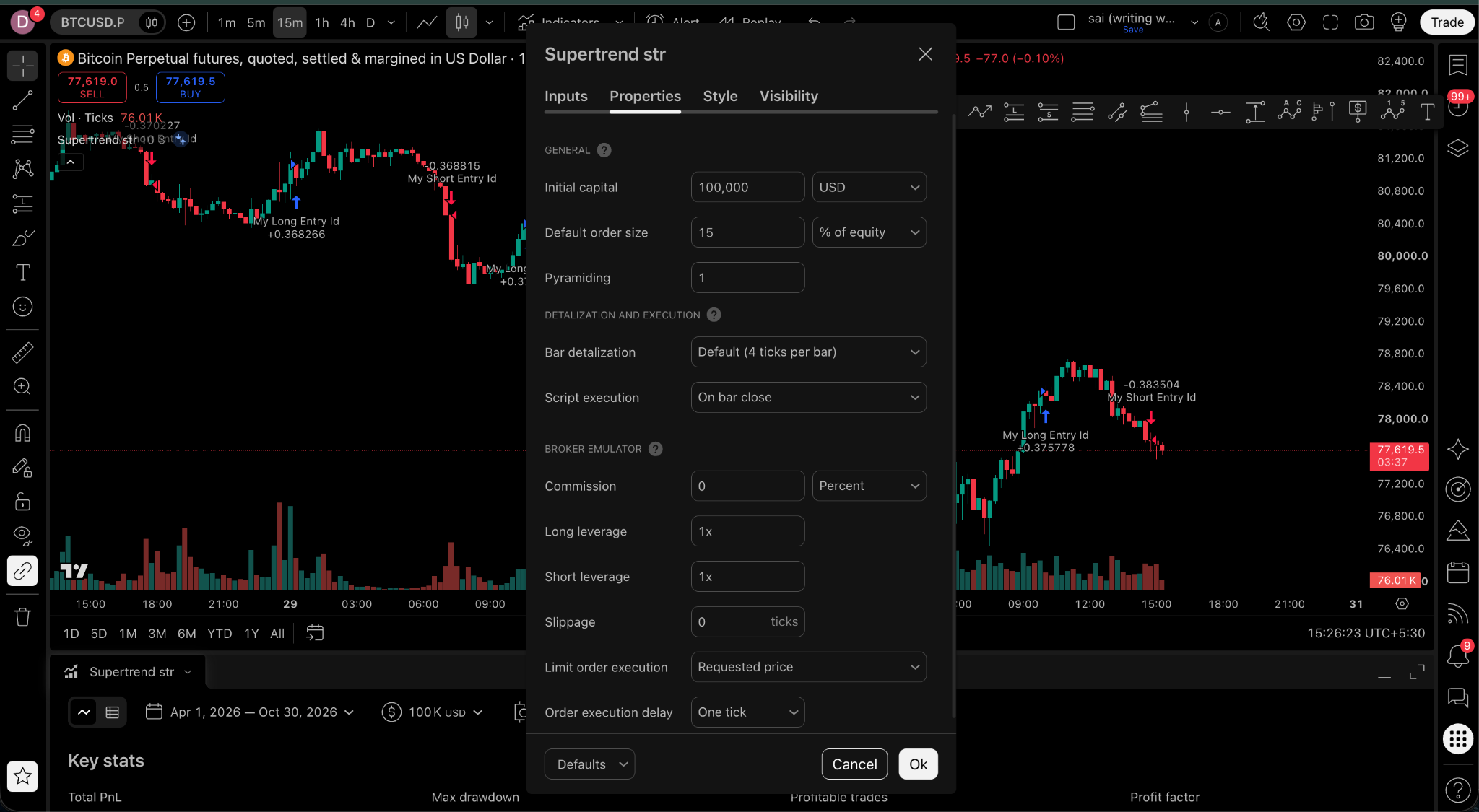
Set Order size to a whole number of lots (Quantity). Decimals are rejected. The screen also shows other settings such as Initial Capital, Base Currency, Pyramiding, and Commission. Example: on BTCUSD, 100 lots = 0.1 BTC on Delta Exchange (1 lot = 0.001 BTC). Type whole numbers only.
Step 7. Create the webhook alert by pasting the message and URL
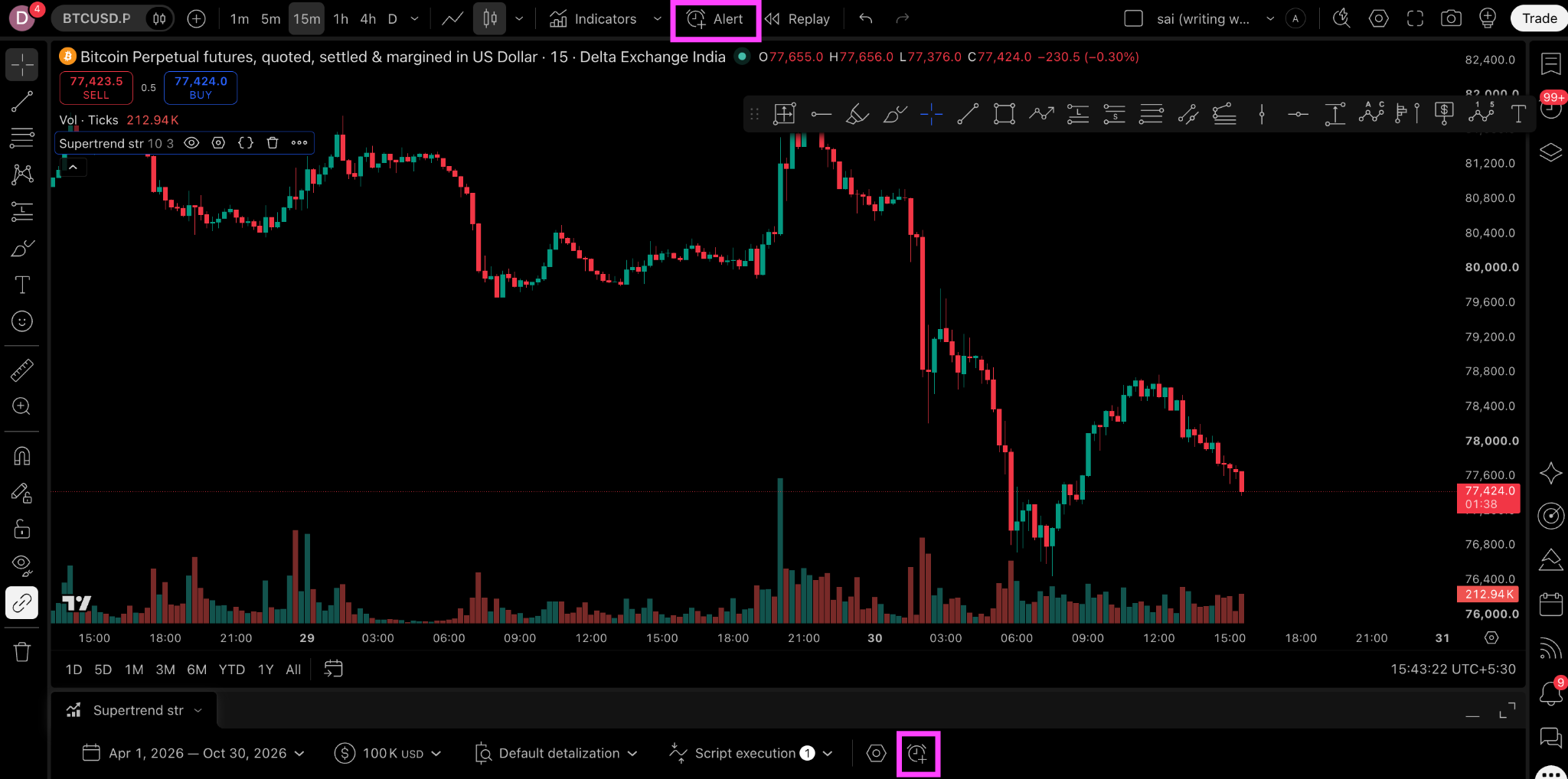
Click Alert (clock icon) on the chart toolbar or strategy tester at bottom.
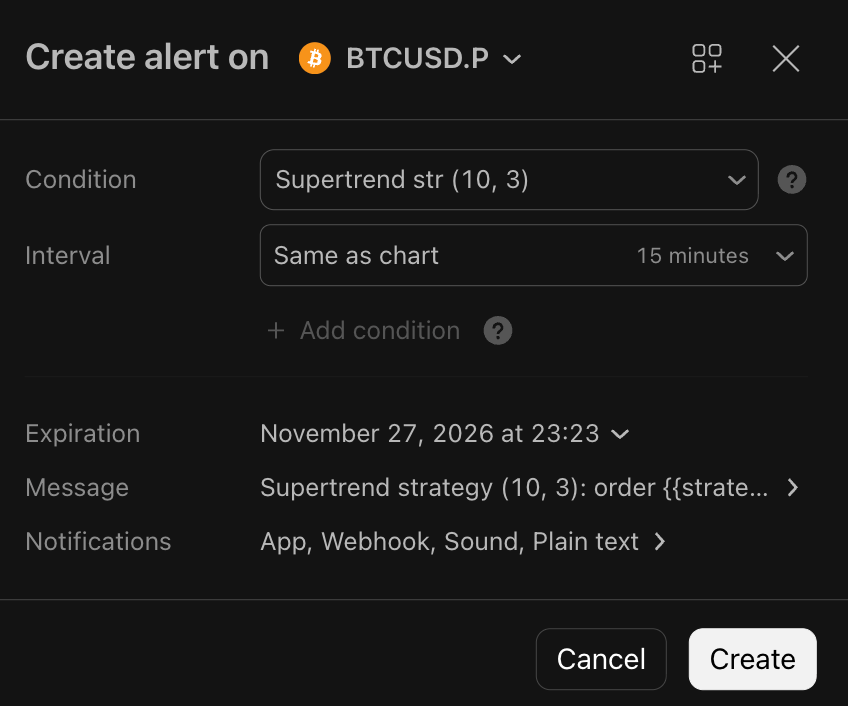
In the alert’s Message box, paste the JSON you copied from Delta (Paste in alert's Message).
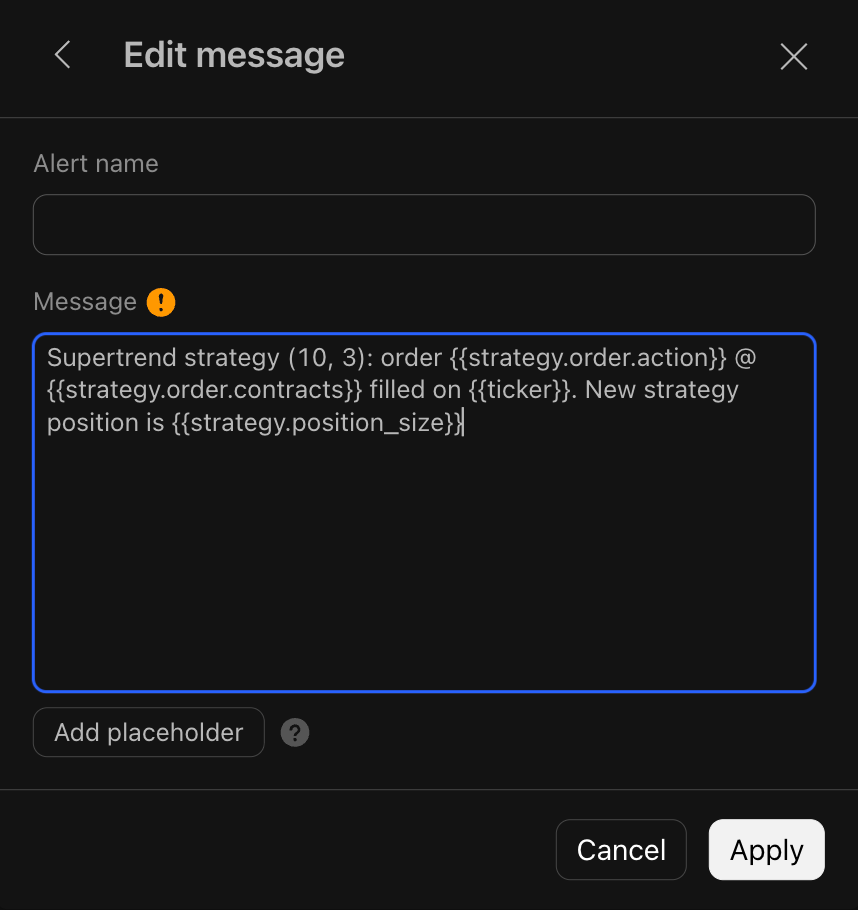
In the alert’s Notifications tab, paste the URL you copied from Delta (Paste in alert's Notifications).
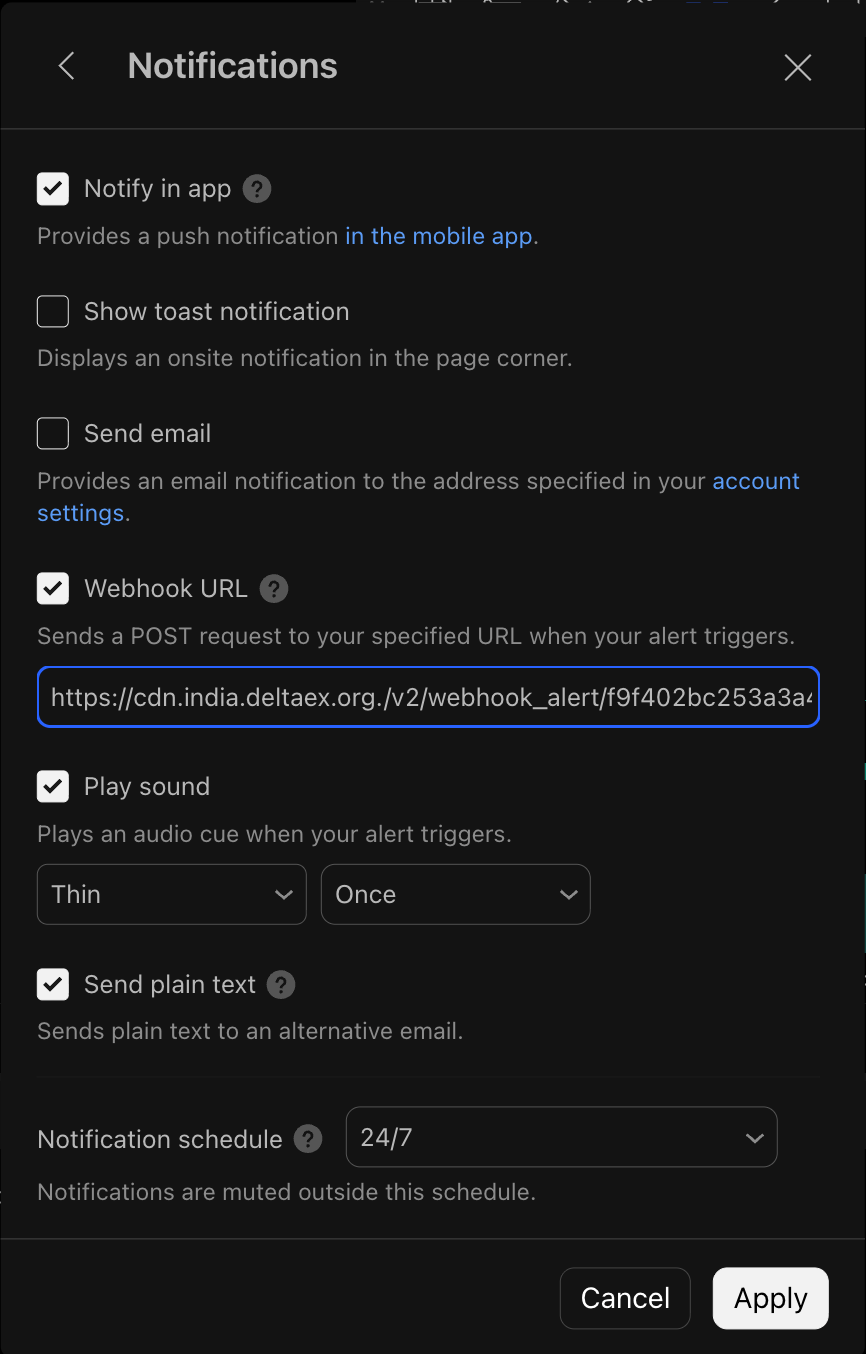
Click Apply
Click on Create Button in the alert window and you are all set! Wait for the strategy to trigger a trade and it will be executed on your Delta Exchange account!
Part 3 — Before you go live
Sync your position with the TradingView strategy. TradingView strategy alerts often send a reverse-sized order (close the current side and open the other). If Delta is flat and TradingView thinks it is already in a position, the first alert can open a larger or opposite position than you expect.
Example with Supertrend:
If the strategy is already long on TradingView, manually open the matching long on Delta (same lots) before you enable the alert.
The next sell then closes that long and opens short, instead of opening a fresh short from flat.
Also:
Webhook orders are market (taker) orders.
Set leverage on Delta Exchange yourself. TradingView does not set leverage.
Order size is the lot size you set in the strategy Properties (and in qty in the message). It does not resize with wallet balance.
Use the DELTAIN: feed so the symbol matches Delta India. Wrong feed is a common reason alerts do not trade.
Part 4 — Manage existing webhooks
Active webhooks
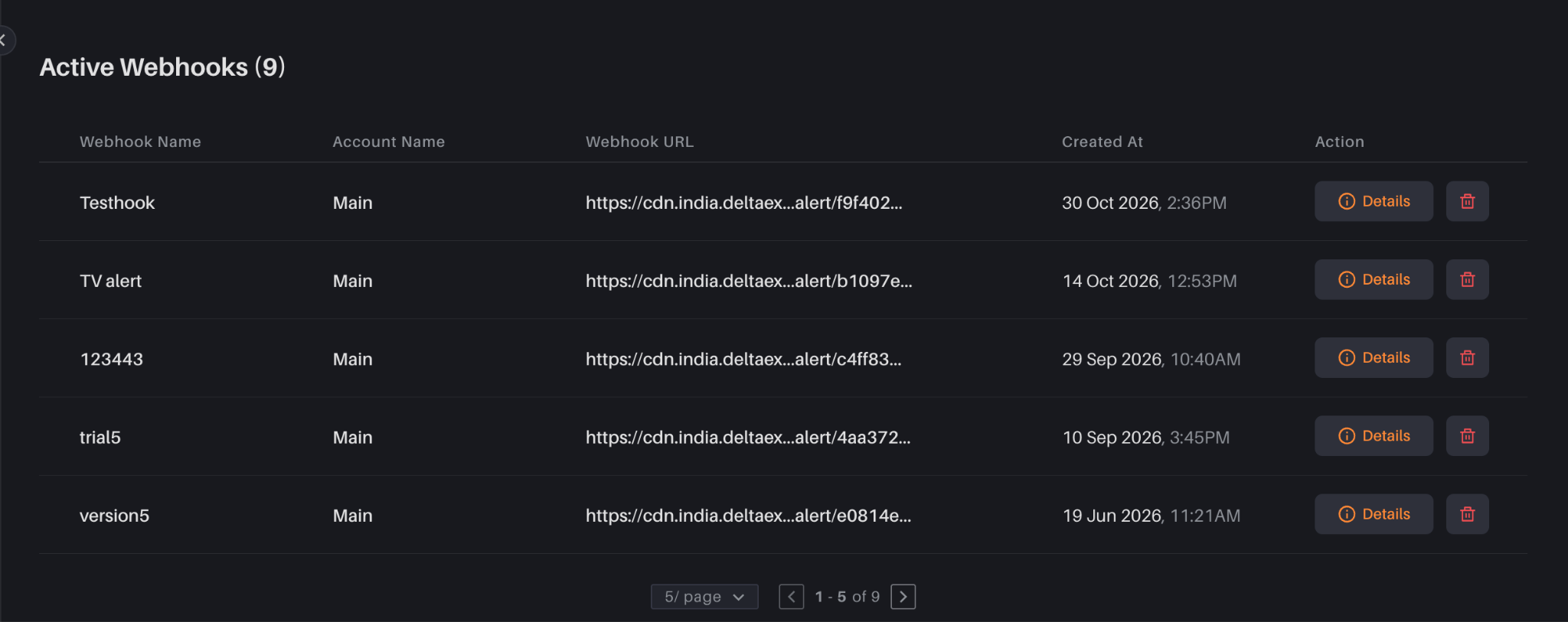
Desktop: The Active Webhooks table sits under the Create Webhook form (name, account, truncated URL, created time, Details, delete).
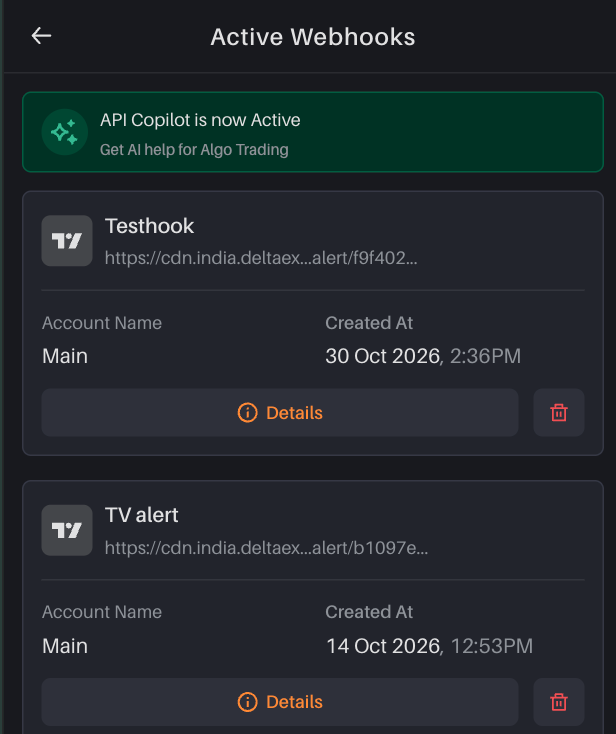
Mobile: Tap Active (n) in the header. Webhooks show as cards.
The truncated URL (for example https://cdn.indiadeltaex...alert/4aa372...) is not a link. Use it only to match the URL on TradingView. Created at is the webhook creation time.
View details again
Tap Details on a webhook.
Complete email OTP + 2FA again.
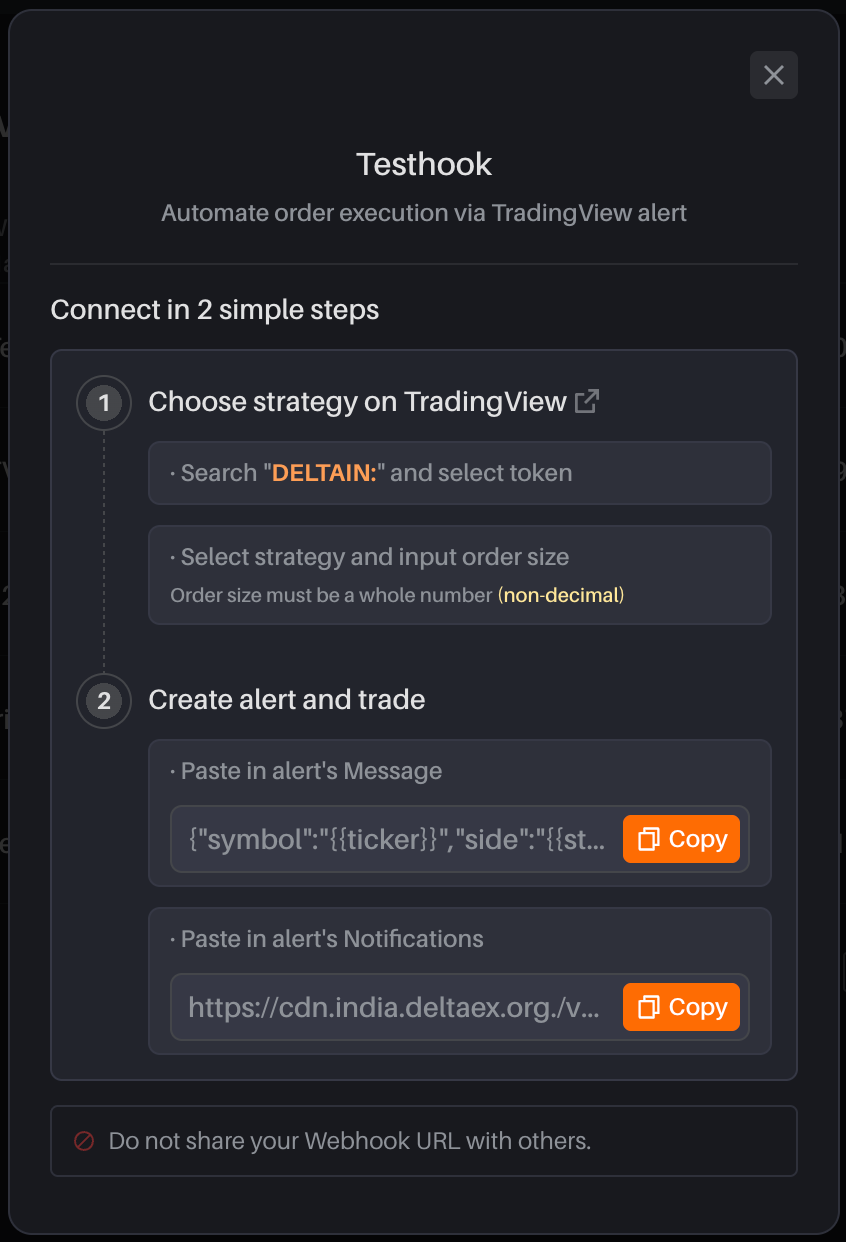
You get the same two copy boxes (Message JSON and Notifications URL). The title is the webhook name.
Delete a webhook
Tap the delete icon.
Confirm in the delete popup.
If you delete the last webhook, you return to the Create Webhook form and Active (n) is hidden.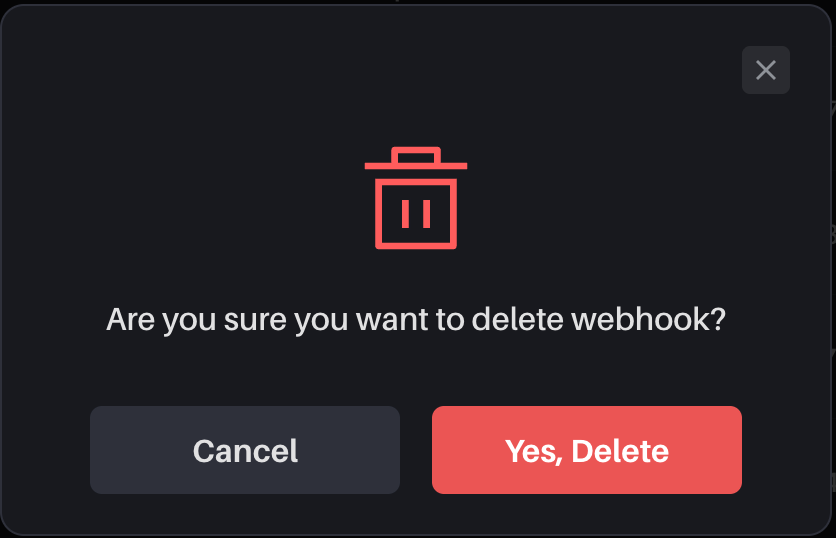
Common mistakes
Searching TradingView without typing DELTAIN: first.
Setting order size with decimals. Use a whole number of lots.
Editing the copied JSON (curly quotes, extra commas, missing strategy_id).
Pasting the webhook URL in the Message box instead of Notifications → Webhook URL.
Sharing the webhook URL.
TradingView plan not “Essential” or above. Unskippable popup will come in setting up.
First alert firing while Delta and TradingView positions are out of sync.
Common Webhook Errors
TradingView only shows that the alert fired. If Delta Exchange does not place the order, match the issue below and fix it, then delete the old alert and create a new one (Message or strategy Properties changes do not update an existing alert).
Missing order details
The alert Message is empty or still TradingView’s default sentence. Delta Exchange needs the JSON from the webhook popup.
Paste the JSON in Message. Paste the URL only in Notifications → Webhook URL.
Keep quotes and field names exactly as copied. Do not use curly quotes.
Order size is not a whole number
Delta Exchange accepts quantity in contracts, which are essentially lots.
Qty must be a whole number of lots (1, 10, 100). Decimals such as 0.5 or 0.001 are rejected.
Set Order size under strategy Properties, then create the alert again.
Quantity missing
The Message has a symbol and side but no qty.
For a strategy alert, keep {{strategy.order.contracts}} in qty.
For an indicator, price, or drawing alert, type the lot count yourself, for example "qty":"20".
Invalid symbol / contract
Open the chart with DELTAIN: (Delta Exchange India perpetual, for example BTCUSD.P).
Do not put DELTAIN: inside the JSON. {{ticker}} already becomes BTCUSD.P on a DELTAIN chart.
Options (C- / P-), dated futures, and another exchange’s ticker (for example BTCUSDT) will not trade on this webhook.
Side is not buy or sell
Side must be buy or sell (lowercase). Not BUY, long, or short.
{{strategy.order.action}} only fills on a strategy order-fill alert. On a price, indicator, or drawing alert, type "side":"buy" or "side":"sell".
Order size is zero or negative
Qty must be greater than 0. A 0 lot size is rejected.
Check strategy Order size in Properties, then create the alert again.
Insufficient margin
The JSON is valid, but the webhook account does not have enough free balance for the position.
Add funds, reduce lot size, or lower leverage on Delta Exchange (TradingView does not set leverage).
Invalid order type
Do not add order_type unless you need it. If omitted, Delta places a market order.
If you add it, use only market_order or limit_order. Values such as stop are rejected.
Trading not allowed on current margin mode
Portfolio margin on Delta Exchange allows only BTC and ETH. Switch the chart to BTC/ETH, or use isolated margin for other contracts.