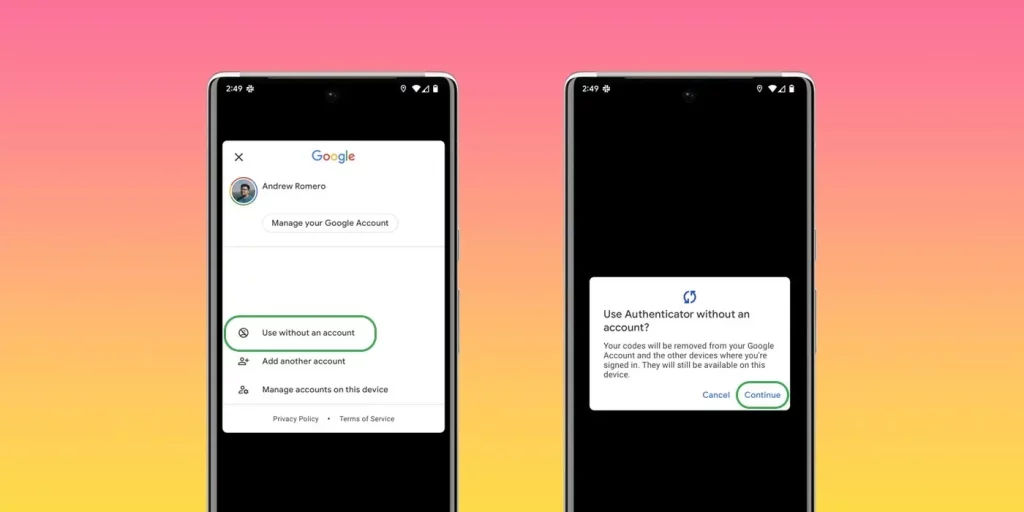
Disable Google Authenticator cloud sync feature for better security

What has changed?
Until now, the Google Authenticator app used to store OTPs only on the primary device. This meant that if a user lost access to their device, they wouldn’t be able to access any of their accounts secured with the 2FA mechanism. Now, this new feature lets users backup their 2FA codes to the cloud which allows the users to access the code from other devices.
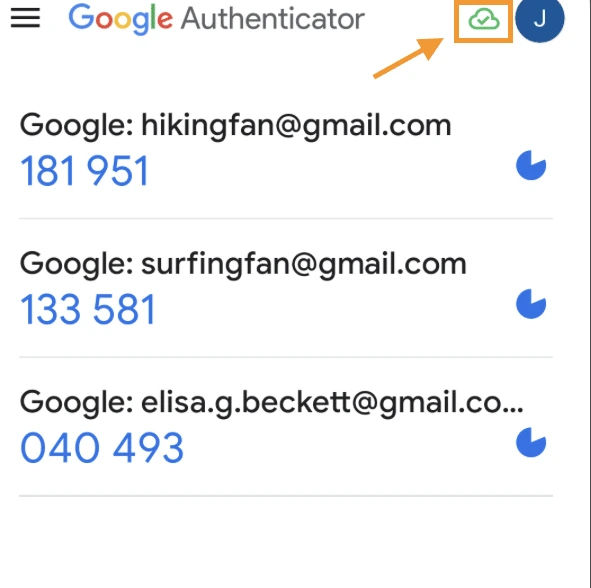
Note: This new app update is not available on all android and iOS devices yet.
What are the security concerns?
Unfortunately, Google has not implemented end-to-end encryption for the codes uploaded to their cloud servers which makes it susceptible to hackers during the sync. Moreover if hackers gets access to your gmail account, they could also get all the one-time codes associated with your accounts.
Our Recommendation
To safeguard their accounts, we strongly recommend that users do not enable the Google Cloud sync feature for their Delta Exchange 2FA. Although convenience is important, the security of digital assets should always take precedence. For users who have already enabled the 2FA code cloud sync we would suggest that you disable this by following the below steps -
How to disable Google Authenticator sync feature?
With the new update, Google sort of pushes the new syncing feature, so you may find yourself now logged in with a Google Account. Fortunately, that’s easy to reverse.
- On your device, open the Google Authenticator app.
- Tap your profile photo.
- Hit Use without an account.
- Tap Continue.