Automated Trading Guide: No Coding Required

Introduction
This blog shows how to automate a trading strategy on Delta Exchange using TradingView and Next Level Bot without writing a single line of code.
Please note that this is only for educational purposes. Connecting the Dots: Delta Exchange, TradingView and NLB TradingView generates alerts based on your chosen strategy. These alerts are then forwarded to NLB via a webhook, a way to send data to other applications in real-time. Once NLB receives the alert, it's time for action. NLB translates this alert into a trade on Delta Exchange.
Selecting a Strategy
TradingView is a resource-rich platform offering various trading indicators and strategies.

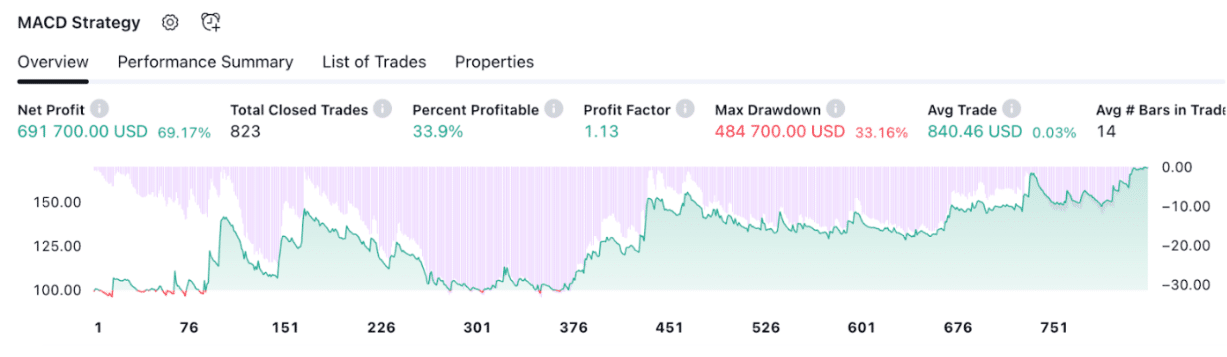
To ensure that your chosen strategy works, use TradingView for backtesting. TradingView will provide you with the performance results of the strategy prior to deploying it on your account so you have an idea about how the strategy has performed in the past. For the educational purpose, MACD Strategy is chosen. In this example, I have chosen 100 contracts, you can adjust the parameters for your strategy by clicking the settings button shown on the top of the screenshot.
Step by Step Guide
Step 1: Set Up Your Accounts
First, you'll need to have accounts on NLB and TradingView. If you don't have these yet, you can sign up on Next Level Bot and TradingView.
Step 2: Link Your Delta Exchange to Next Level Bot (NLB)
The communication gap between Delta Exchange and Next Level Bot is bridged via API keys. These keys allow NLB to place orders on Delta Exchange.
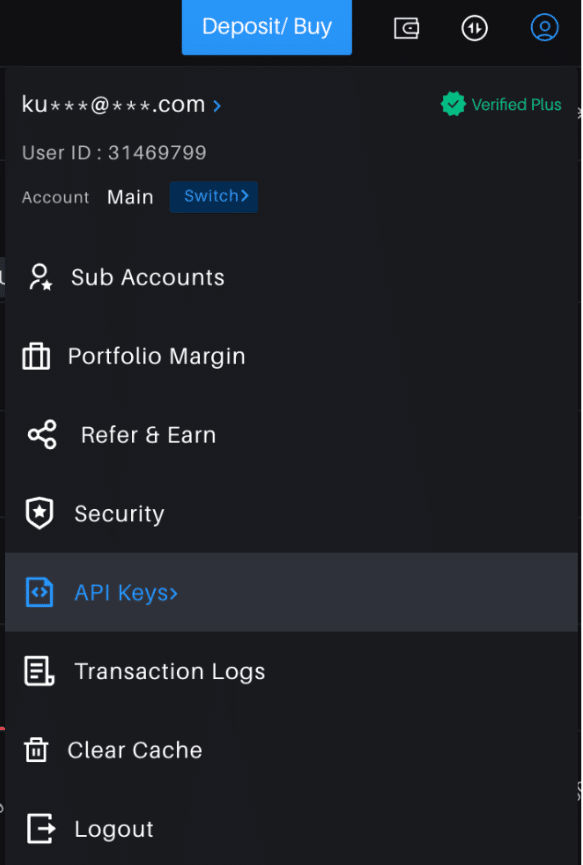
- On Delta Exchange, click the profile icon located on the header.
- Select “API Keys”.
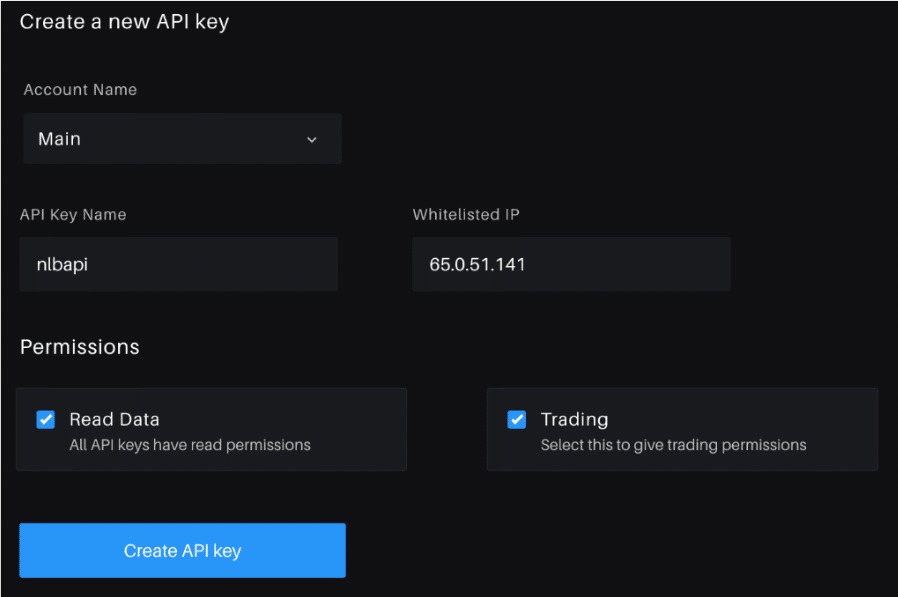
- Enter a name for the keys, and NLB’s IP (65.0.51.141) in the whitelisted IP address field. This is to ensure that delta exchange recognises the orders sent from NLB servers.
- Click on "Create New Key."
- Copy the generated API Key and Secret.
- Share your Delta Exchange API keys with NLB:
- On NLB, go to "API Credentials".
- Click on Add API.
- Select “Delta Exchange”.
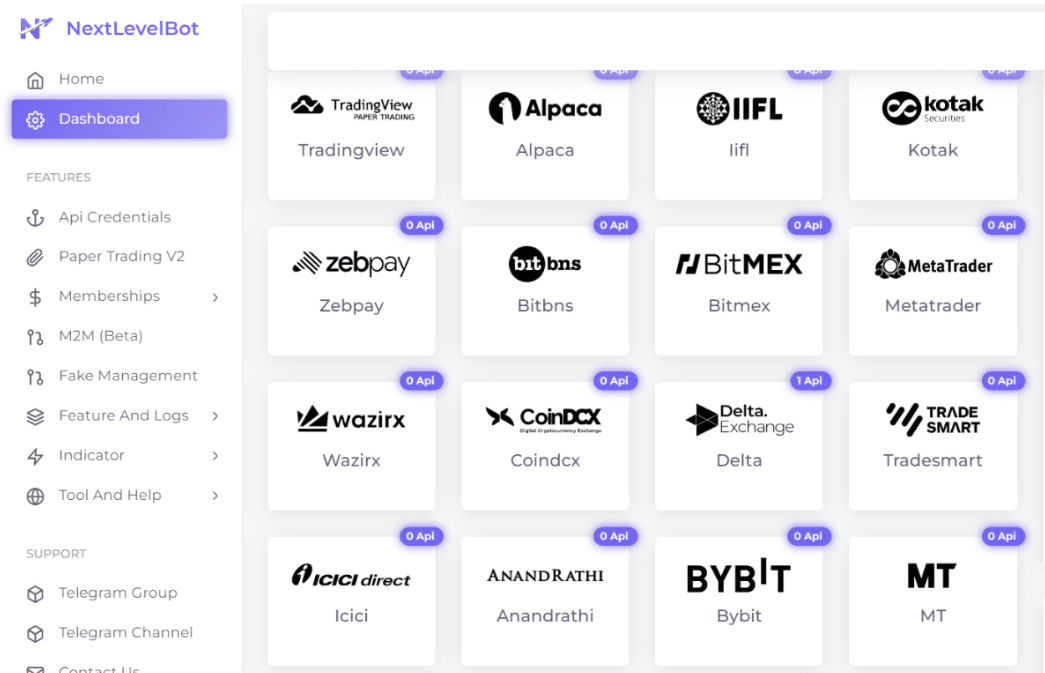
- Enter an App name (anything you desire) and Paste your API Key and Secret in the corresponding fields.
- Click Save.
NLB now has permission to execute trades on your Delta exchange’s account. Next Level Bot Support: https://t.me/nextlevelbot_tradingDelta Exchange Support: https://t.me/deltaexchat
Step 3: Integrate TradingView with NLB
- On NLB, go to "Dashboard" and find the "Sequence Webhook URL." Copy it.
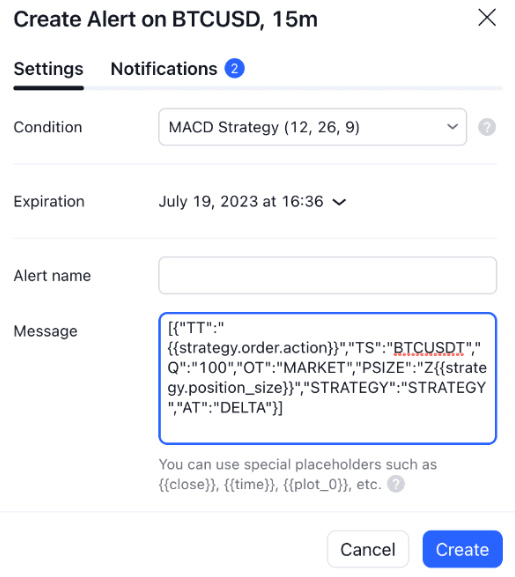
- On TradingView, add your strategy to the chart and go to the "Alerts". In the "Webhook URL" box, paste the URL you copied from NLB.
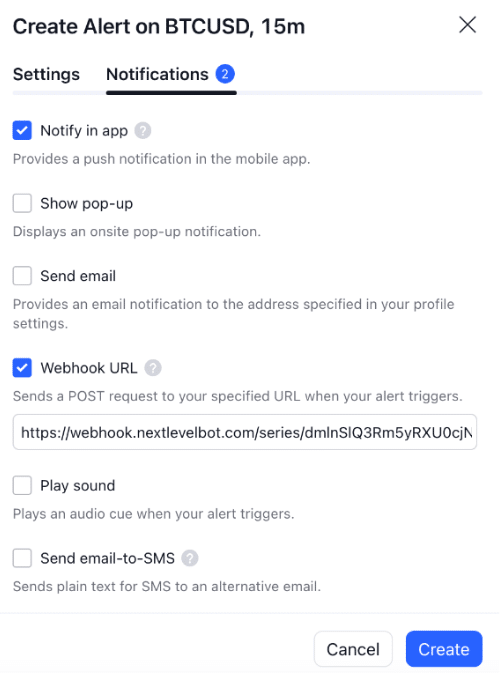
Now, every time your selected strategy triggers an alert, it will be sent to NLB and subsequently to Delta Exchange
Step 4: Automate Your MACD Strategy
At this point, all that's left to do is tell NLB what to do when it receives an alert from your MACD indicator on TradingView.
- On NLB, go to "Tools and Help” and select “Syntax Generator”
- Select “Delta Syntax” and then select “TV Strategy”
- Enter the details of the order you want to execute when the MACD alerts trigger.
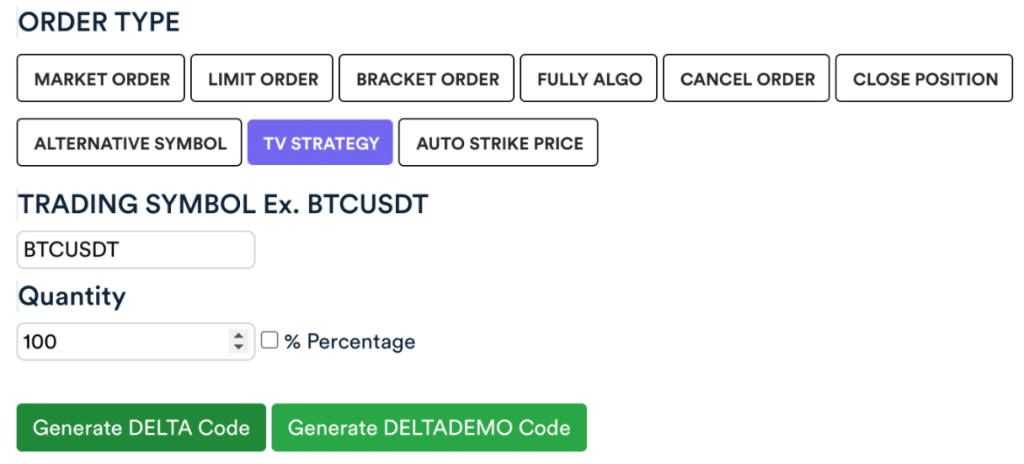
- Click Generate Delta Code and Copy the generated code.
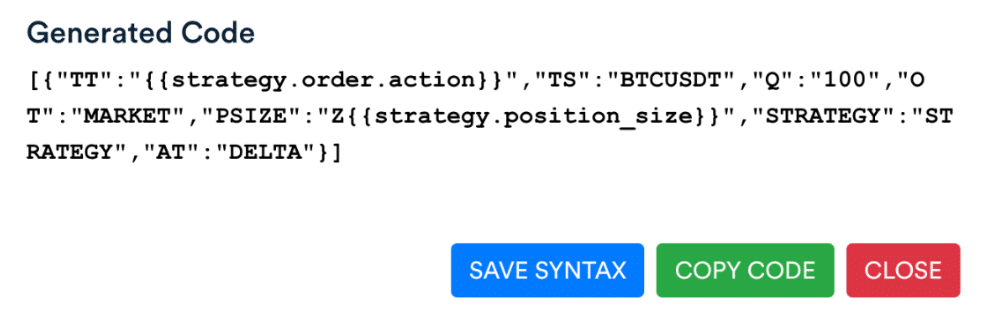
- Paste the message in the trading view alert dialog box and click create.
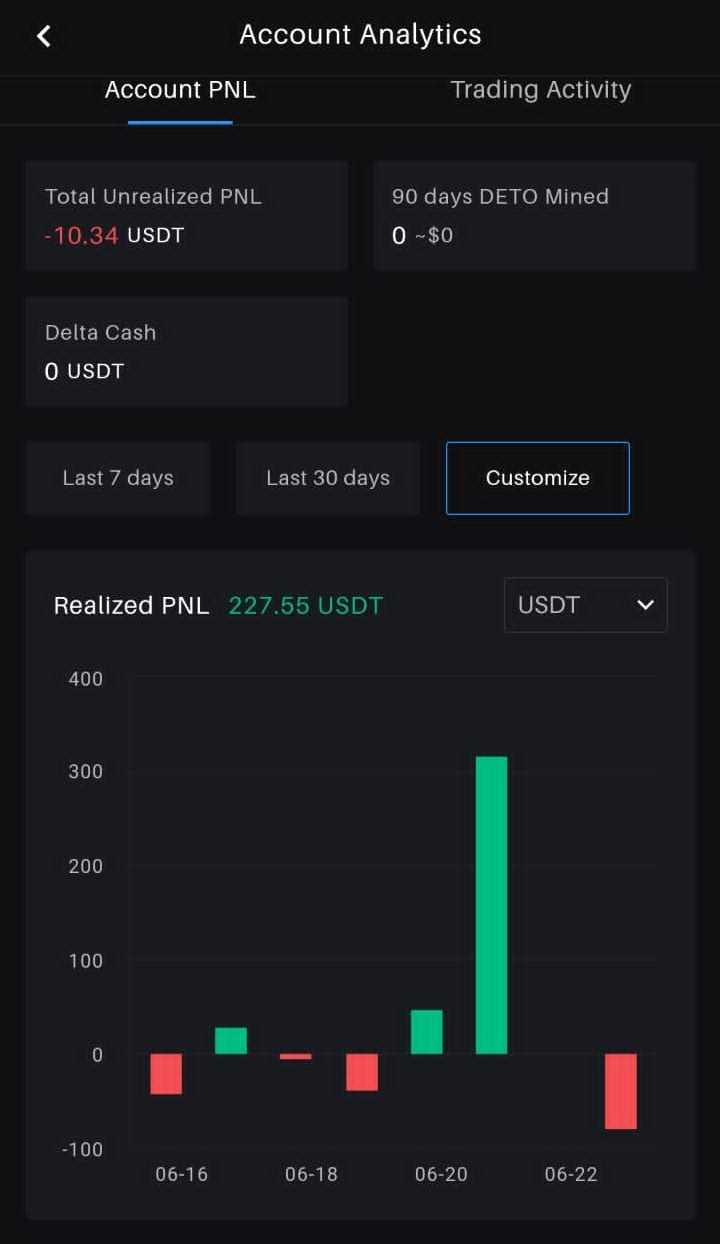
Strategy Application Below image shows the Realised PNL of 227.55 USDT after executing the above strategy for the period of 16 June to 22 June.
Wrapping Up Automating your trading strategy can save you a lot of time and potentially increase your profitability. This guide has shown you how to automate a MACD strategy on BTC/USD using Delta Exchange and NLB, without needing to write a single line of code.
More Resources
Need more help with the integration process? Check out these helpful videos:
Disclaimer: Please refer here.