Delta Exchange is now live as a fully integrated broker on TradingView. This means you can trade Delta Exchange instruments — including Bitcoin Perpetual Futures — directly from TradingView's powerful charting interface, without ever leaving the platform.
This guide covers how to connect your Delta account as a broker on TradingView, followed by a full walkthrough of trading features the integration offers.
What You Can Do with This Integration
Place Market, Limit, Stop, and Stop Limit orders directly from the chart
Drag and drop Take Profit (TP) and Stop Loss (SL) levels visually on the chart
View live order book depth (DOM) alongside your chart
Monitor open positions, working orders, and full order history in one panel
Review account balance, margin, and P&L at a glance
Customize trading display and behavior through Trading Settings
PART 1
Connecting Delta Exchange to TradingView
Step 1 — Open a Chart on TradingView
Head to TradingView and open a chart. For this guide we'll use BTCUSD.P, but any instrument works.
Once the chart is open, locate the "Trade" button in the top-right toolbar
This is the entry point for connecting any broker, including Delta Exchange
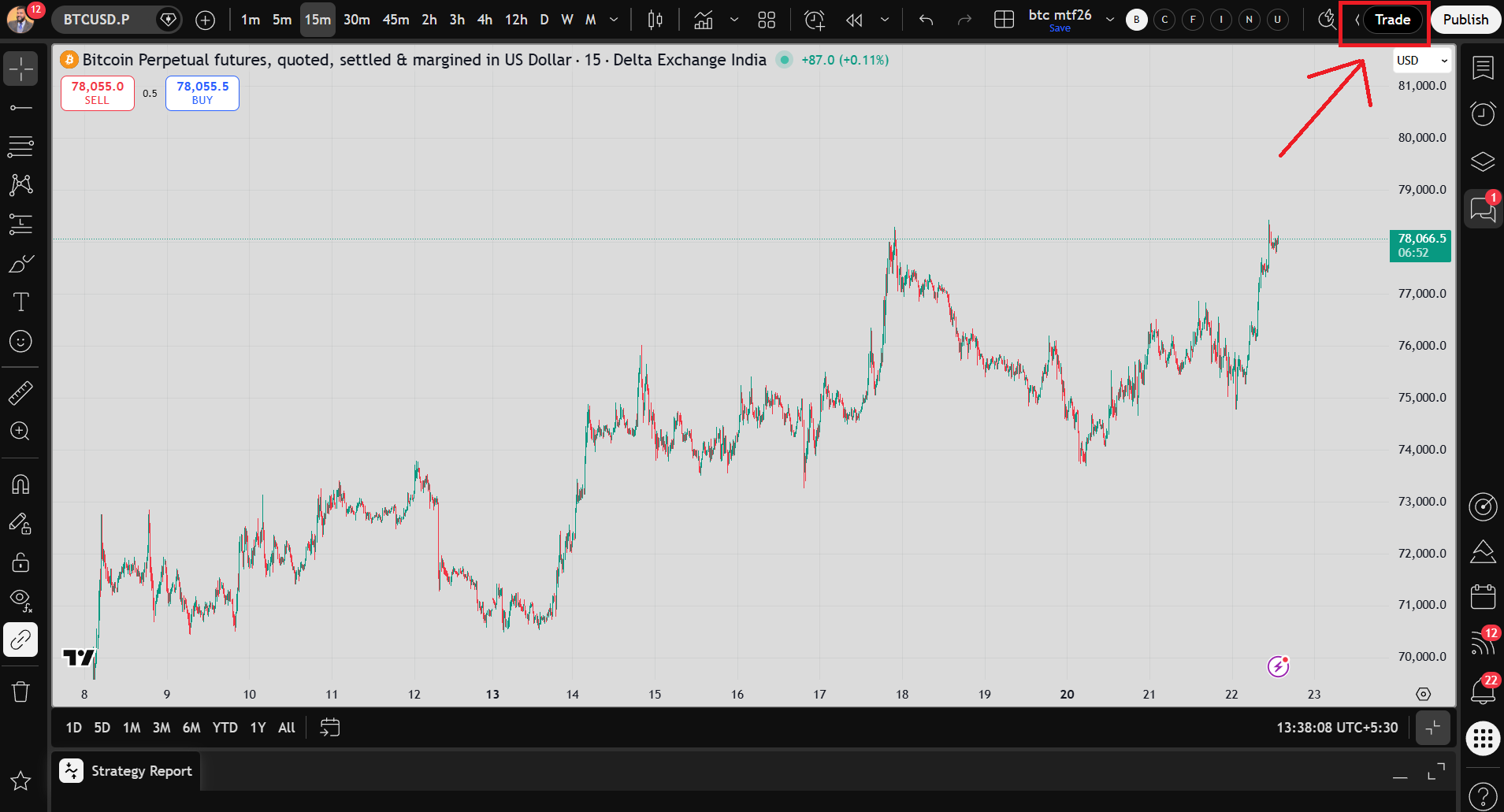
Tip: If you don't see the Trade button, make sure you're logged in to TradingView and viewing a full chart layout — not the screener or watchlist.
Start Trading on TradingView → "Trade Now"
Step 2 — Open the Trading Panel
Click the "Trade" button in the toolbar and TradingView shows all supported brokers. Delta Exchange appears here under its integration name.
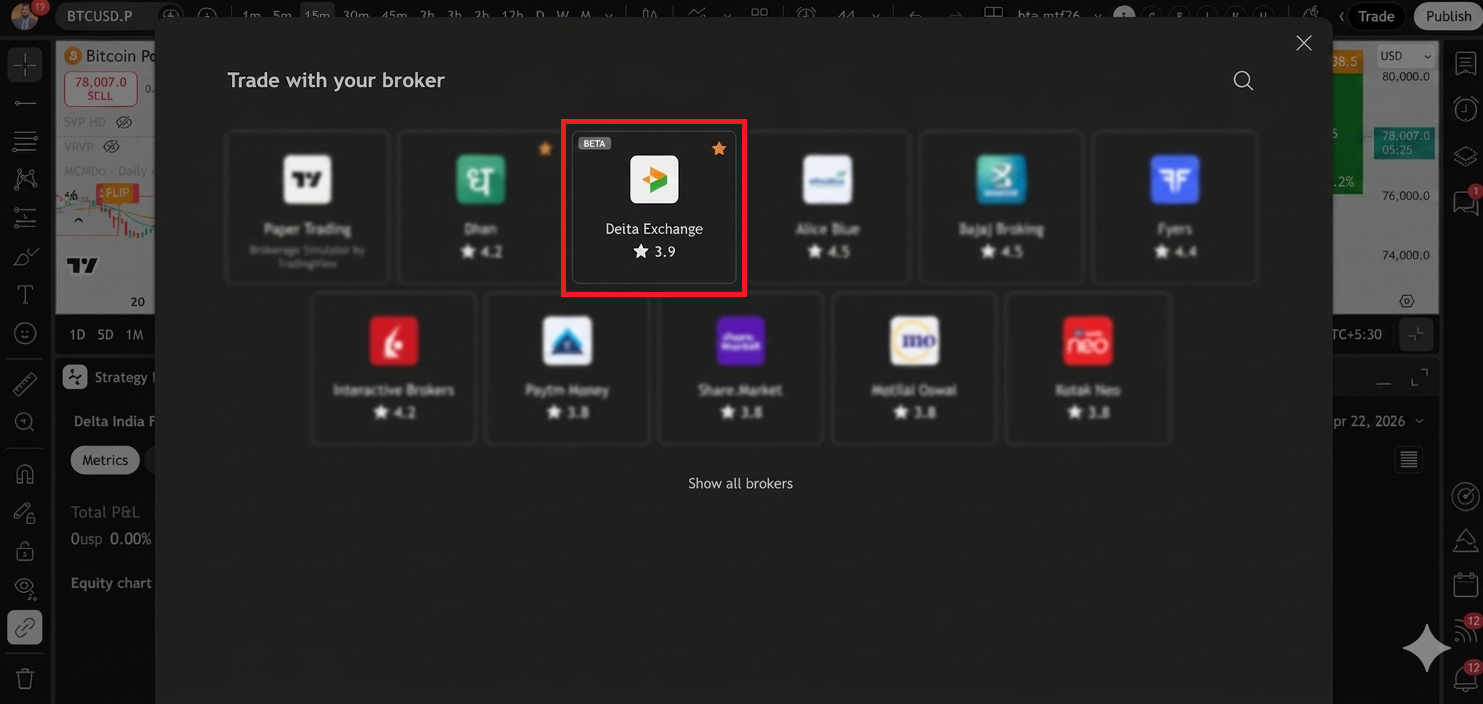
Step 3 — Select Delta Exchange as Your Broker
Click on Delta Exchange and click "Connect" next to the Delta Exchange listing
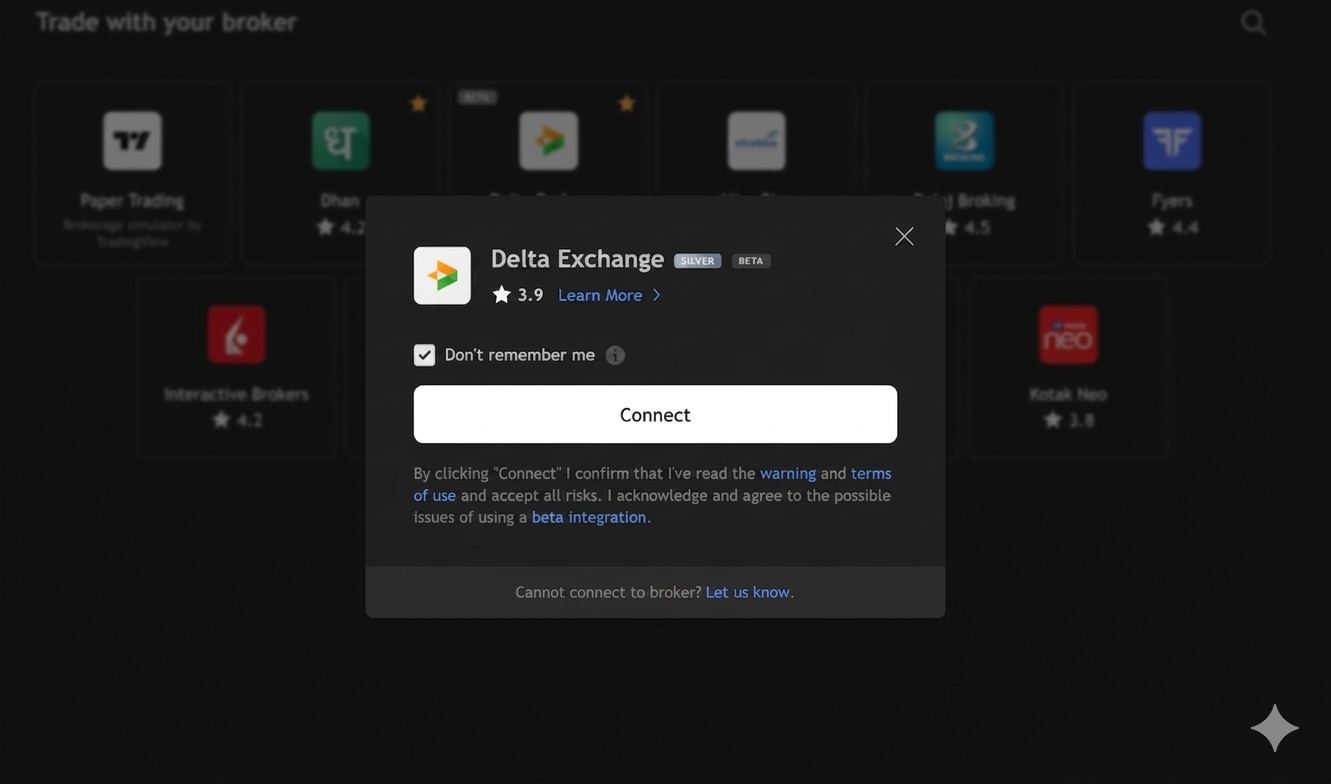
Step 4 — Log In to Your Delta Exchange Account
Clicking Connect opens a secure login window in your browser, taking you to Delta Exchange's authentication page
Enter your email address and password registered with your Delta Exchange account, then click Log In.
Note: If you are already logged in to your Delta Exchange account, then you will not see this pop-up and can skip to the next section for authorization.
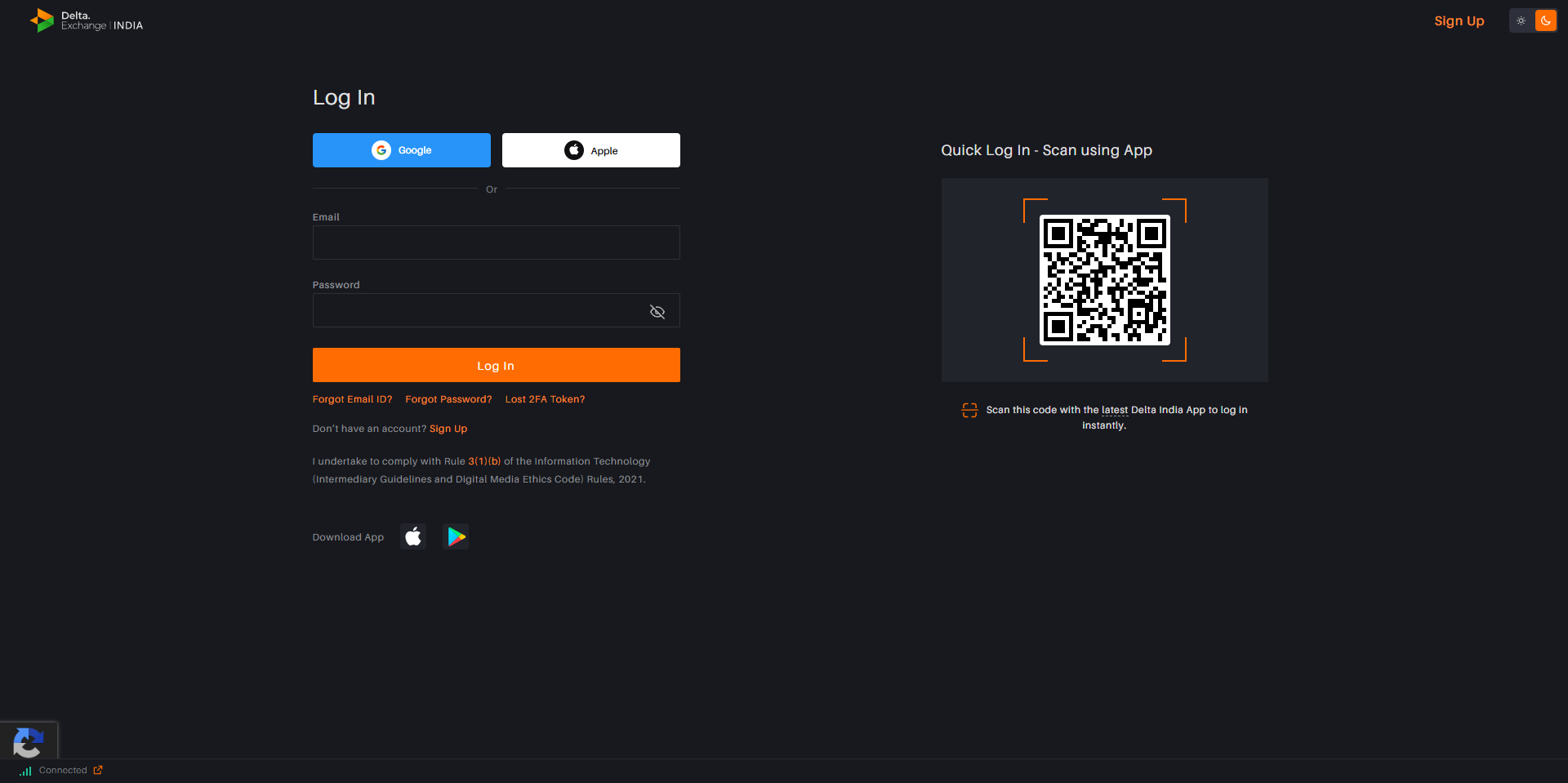
Tip: Don't have a Delta Exchange account yet? Visit delta.exchange to register — the sign-up process takes just a few minutes.
Step 5 — Authorize TradingView Access
After logging in, an Account Access screen appears. TradingView is requesting permission to interact with your Delta Exchange account on your behalf.
The permissions it needs:
View balance — so TradingView can display your account balance and buying power
Place and manage orders — so you can trade directly from TradingView charts
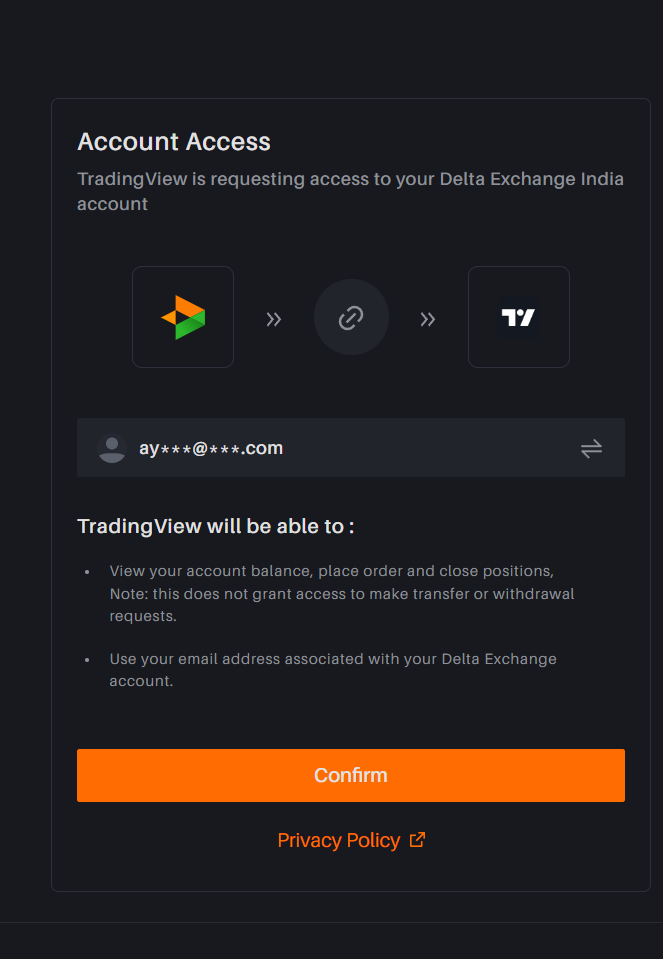
Click "Confirm" to grant access and complete the connection.
Step 6 — You're Connected
Once authorized, you'll be redirected back to TradingView. Your Delta Exchange account now appears in the Trading Panel at the bottom of your chart.
"Delta Exchange" with "Main USD (Beta)" as the active account
Your live Balance and Available Balance shown in the panel header
Five tabs ready to use: Positions, Orders, Order History, Account Summary, and Notifications Log
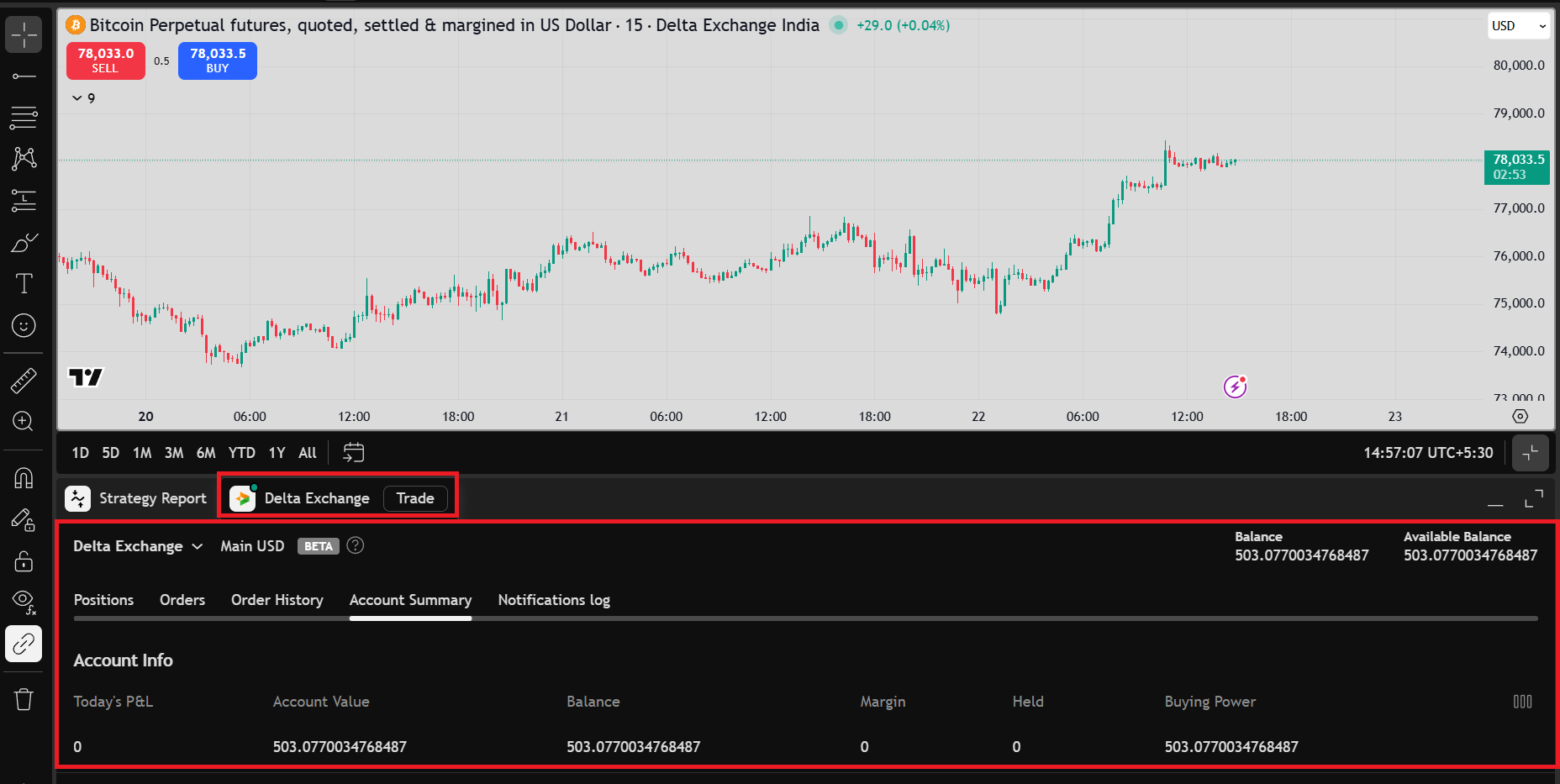
You’ve now successfully connected Delta Exchange with TradingView.
From here, your entire workflow becomes faster:
Find opportunities
Analyze charts
Execute trades instantly
All in one place.
PART 2
Trading Features
With your Delta account connected, here is a full walkthrough of everything you can do directly from TradingView.
1. The Delta Exchange Broker Panel
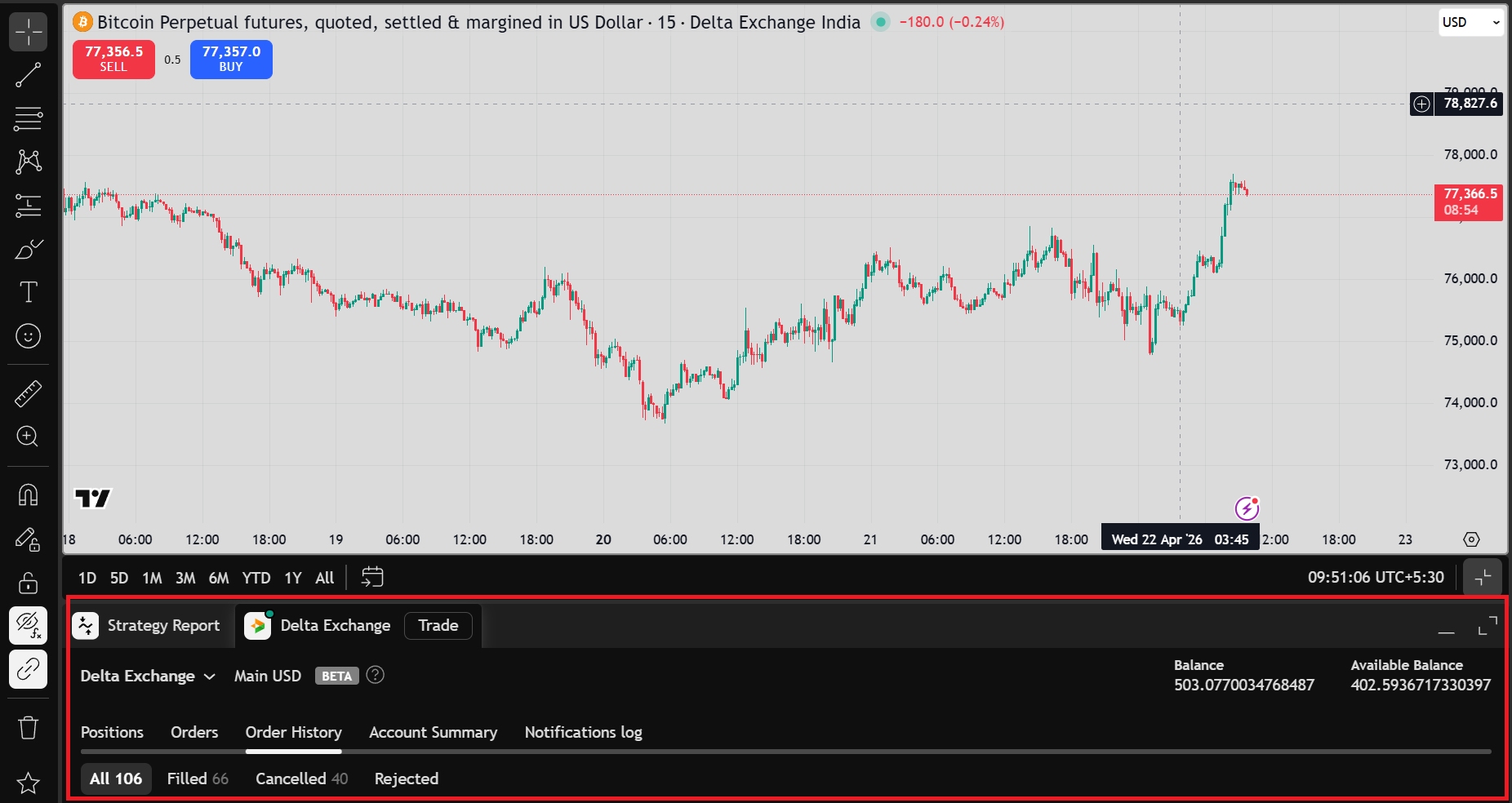
Once connected, a persistent panel appears below the chart at all times. It shows your live account status, open positions, and all order activity — without you ever needing to visit the Delta Exchange website.
The panel displays:
"Delta Exchange" with "Main USD (Beta)" as the active account
Live Balance and Available Balance in the top-right of the panel
Five tabs: Positions, Orders, Order History, Account Summary, and Notifications Log
2. The Order Placement Panel
The Order Placement Panel is your primary interface for placing trades. Access it by clicking the Trade button in the bottom toolbar or by clicking the Buy/Sell buttons in the top-left corner of the chart. The panel opens on the right side of the screen.
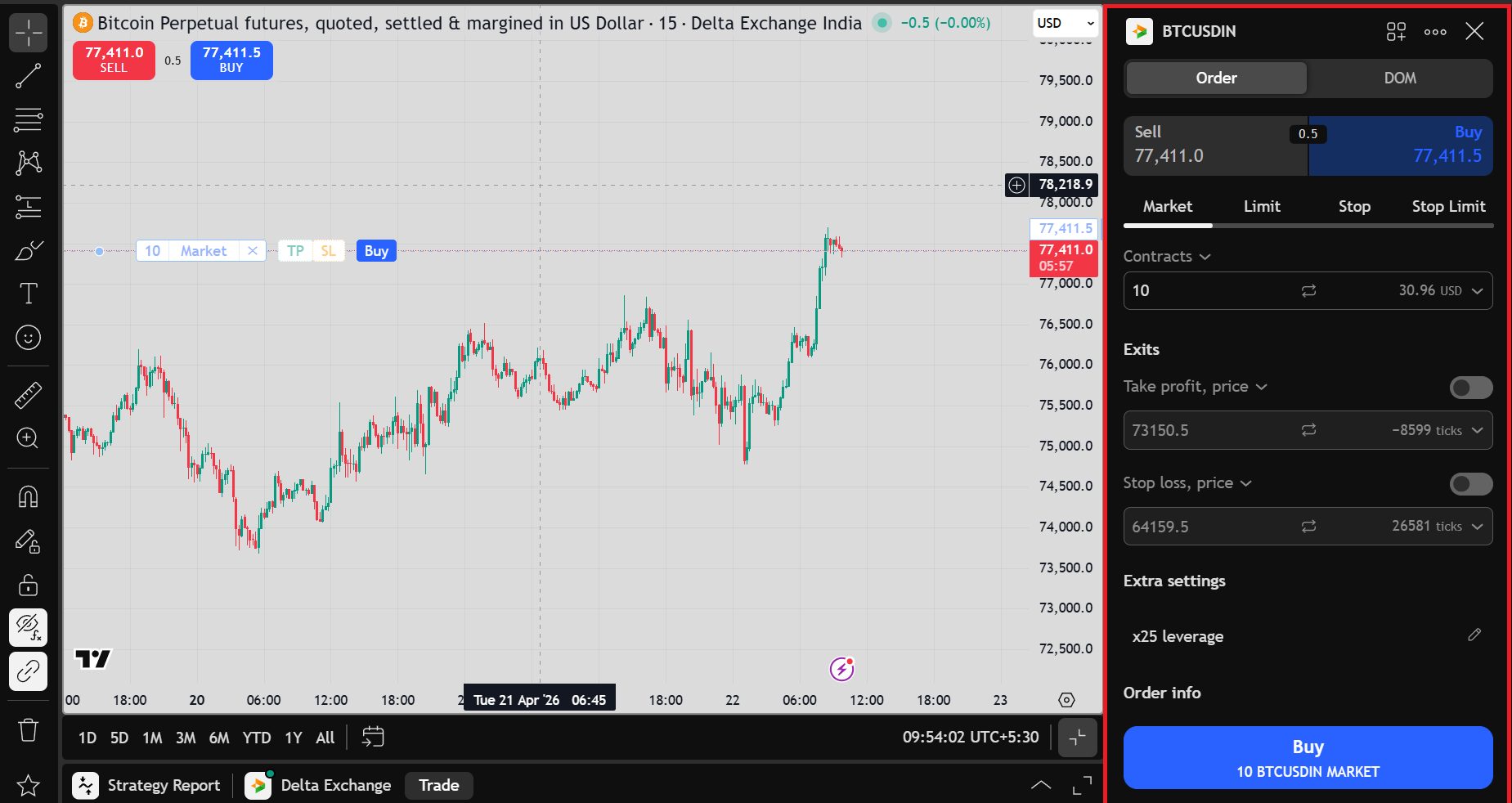
Fig 2. The Order Placement Panel for BTCUSDIN — Market order selected
The panel is divided into the following key areas:
Buy / Sell Toggle
At the top of the panel, two tabs let you switch between Sell (shown in red) and Buy (shown in blue). The current mid-market price is shown between them.
Order Types
Four order types are available, selectable via tabs:
Market — Executes immediately at the best available price
Limit — Executes at your specified price or better
Stop — Triggers a market order once a price level is reached
Stop Limit — Triggers a limit order once a price level is reached
Contracts & Trade Value
Enter the number of contracts you wish to trade. The panel automatically calculates and displays the Trade Value in USD based on the current price. In the example shown, 10 contracts = 30.99 USD trade value at x25 leverage.
Exits — Take Profit and Stop Loss
Below the contract size, you can optionally set Take Profit (TP) and Stop Loss (SL) prices before placing your order. These are toggle switches — enable them to reveal the price input fields. The panel also shows the number of ticks away from entry for each exit level.
Extra Settings — Leverage
The Extra Settings section displays your currently active leverage (e.g., x25). Click the edit icon to adjust leverage before placing the order.
Order Info & Place Order Button
A summary at the bottom shows the Tick Value and Trade Value so you know your exact exposure before confirming. The large blue Buy or red Sell button submits your order — its label updates to reflect the full details, for example: "Buy 10 BTCUSDIN MARKET".
3. Placing Trades Directly from the Chart
One of the most powerful features of this integration is the ability to place orders directly on the price chart — without opening the order panel at all. There are two ways to do this.
Right-Click on the Chart
Right-click anywhere on the chart to open a context menu with instant order options at the exact price level you clicked.
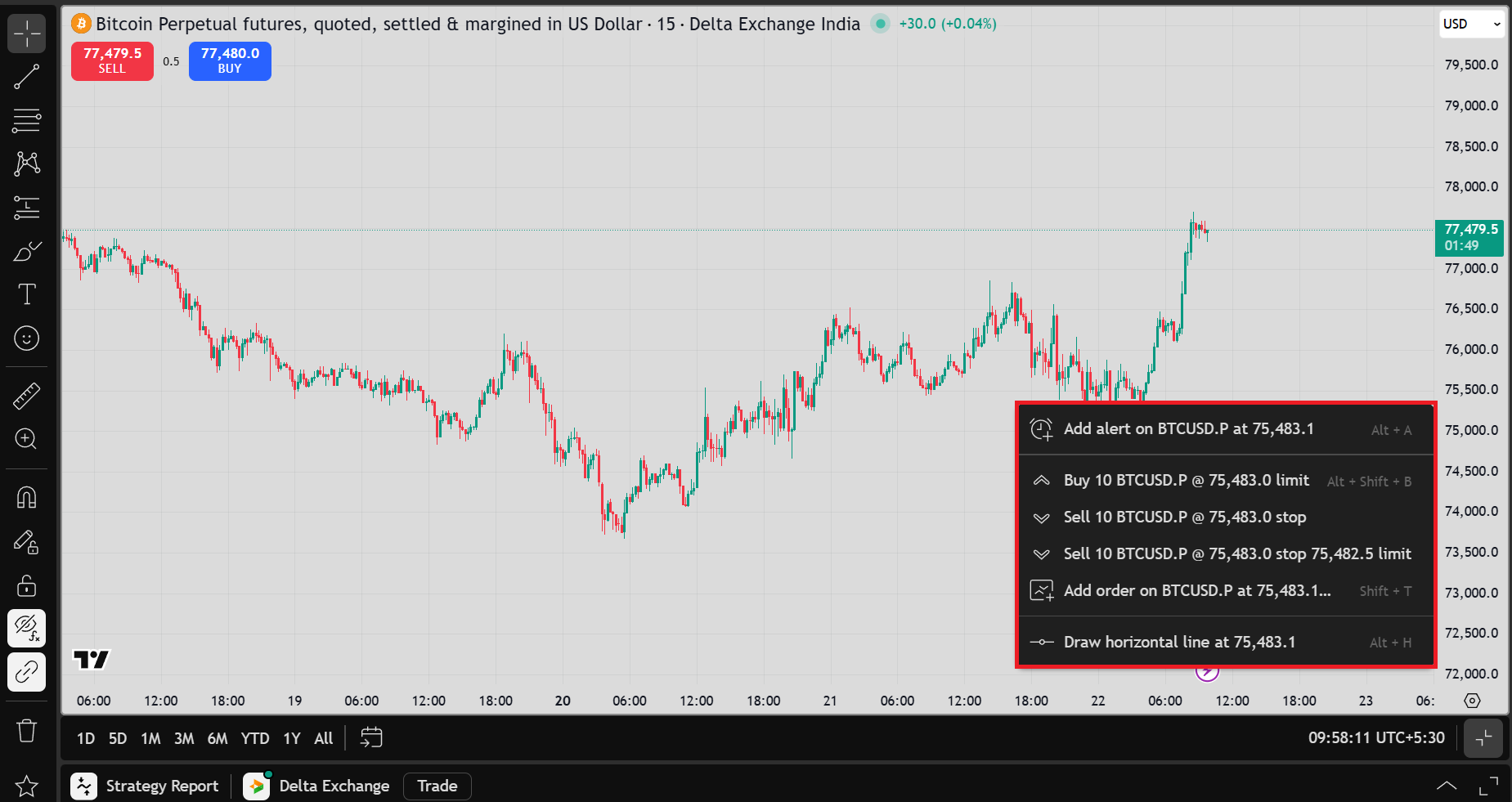
Fig 3. Right-click context menu — place orders instantly at any price level
The menu shows the following options at the selected price:
Add alert — Set a price alert on BTCUSD.P
Buy limit — Place a Buy Limit order (shortcut: Alt+Shift+B)
Sell stop — Place a Sell Stop order
Sell stop limit — Place a Sell Stop Limit order
Add order... — Open the full order dialog (shortcut: Shift+T)
Draw horizontal line — Place a visual reference line (shortcut: Alt+H)
Drag an Order Line on the Chart
You can also click directly on the chart at any price level to create an interactive order line, which you can drag to your exact target price before confirming.
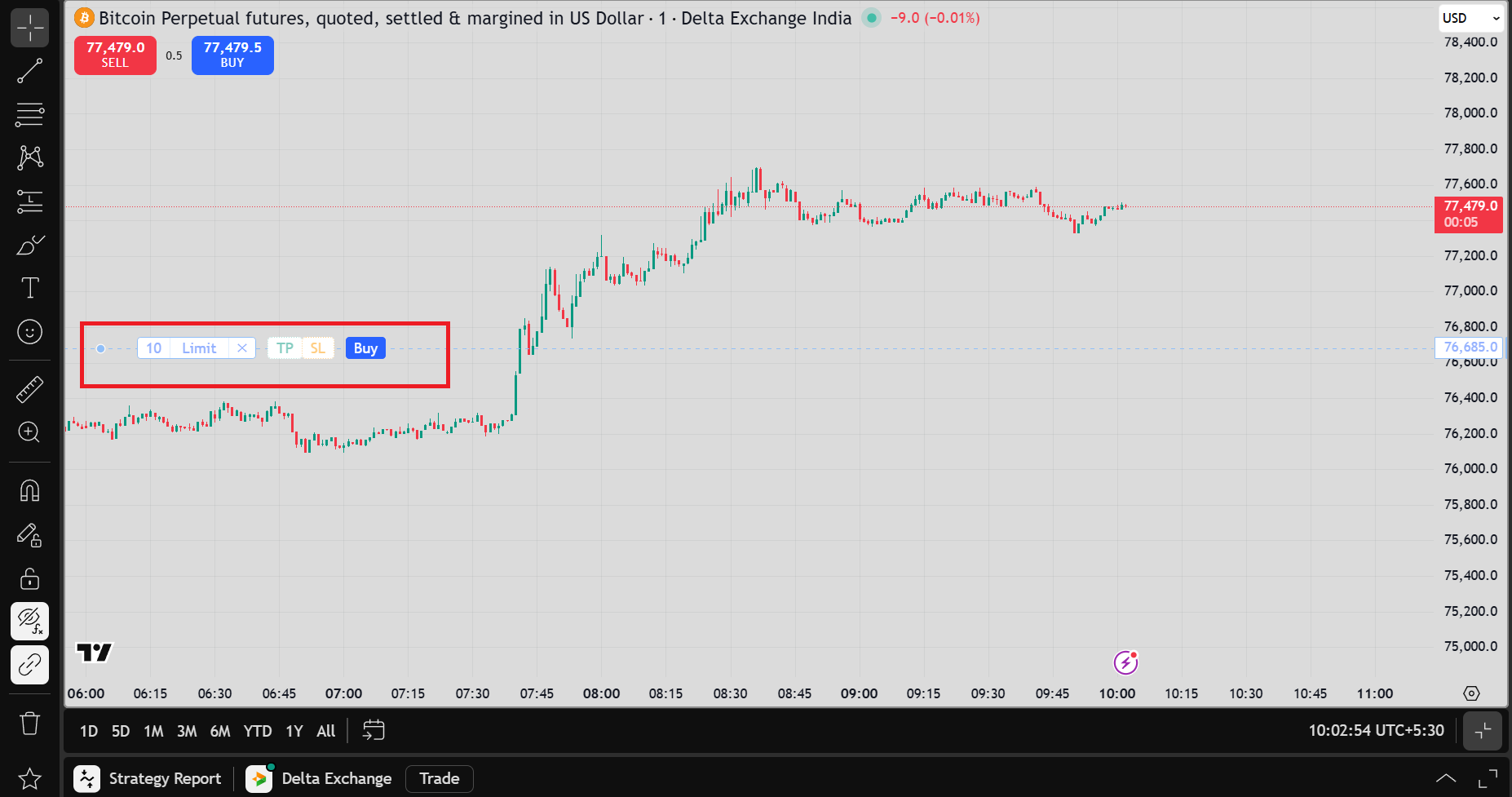
Fig 4. Dragging an order line on the chart — Limit order with TP and SL options
The order line shows the quantity, order type (e.g., Limit), buttons to attach Take Profit (TP) and Stop Loss (SL), and a Buy button to confirm. Once you drag it to the right price and click Buy, a confirmation dialog appears directly on the chart.
Note: When One-Click Trading is disabled (the default), every chart order requires a Confirm action. This protects you from accidental trades. You can enable One-Click Trading in Settings — see Feature 6.
4. Managing Take Profit and Stop Loss on the Chart
Once a Limit order is placed, its Take Profit and Stop Loss bracket levels appear as interactive lines directly on the chart. You can drag these lines at any time to adjust your exit levels visually.
How Order Lines Appear on the Chart
After placing a Buy Limit order, the chart shows three lines:
Entry line (blue) — The Limit order price, labelled with quantity and type (e.g., "10 Buy Limit")
Take Profit line (green/teal) — Labelled "TP", appears above entry price for a buy order
Stop Loss line (orange/red) — Labelled "SL", appears below entry price for a buy order
Adjusting TP and SL by Dragging
To move a Take Profit or Stop Loss level after the order is placed:
Hover over the TP or SL line until your cursor changes to a drag handle
Click and drag the line up or down to the new desired price level
Release — a confirmation notification appears with the updated price
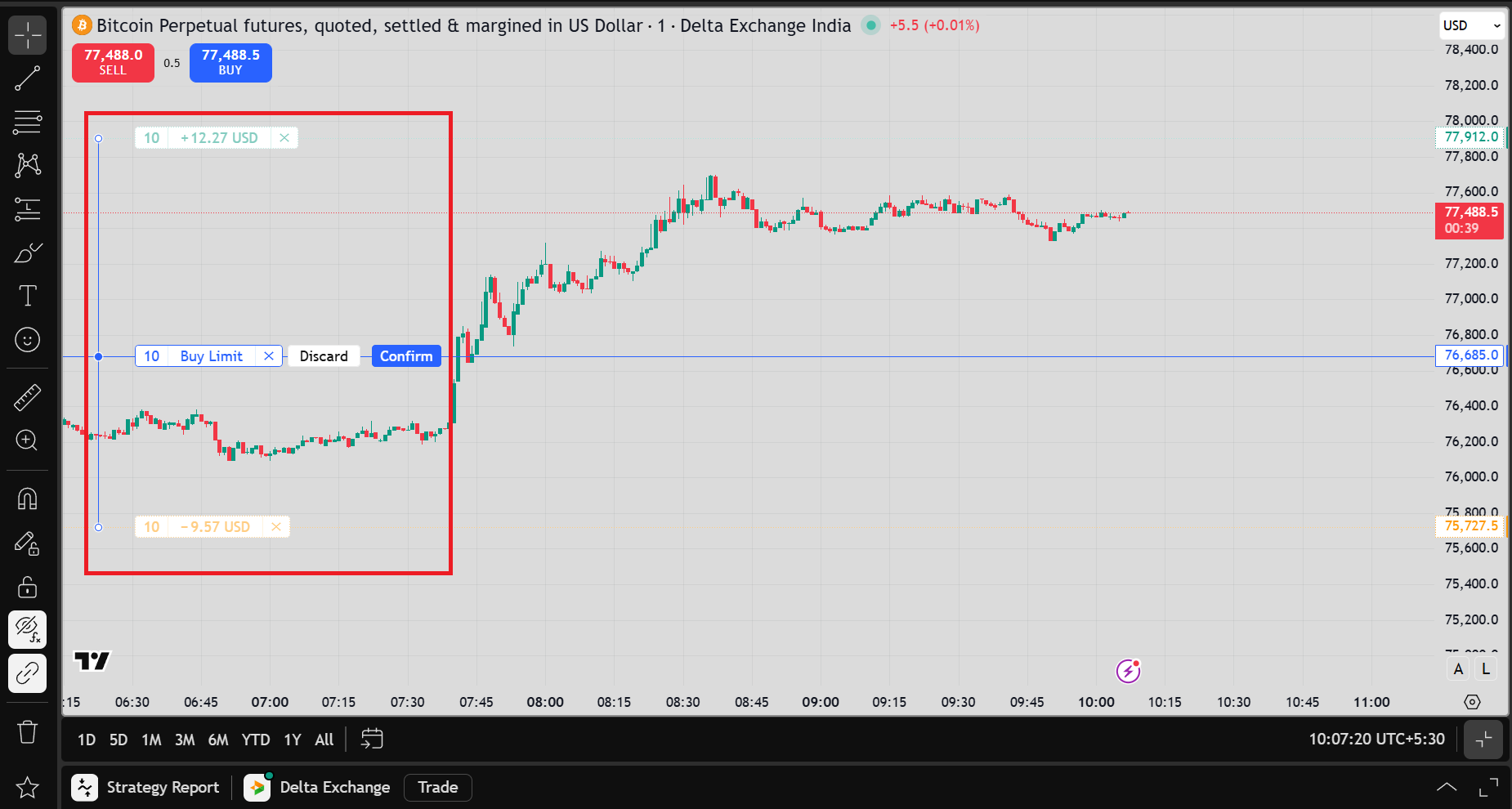
Fig 5. Buy Limit order on the chart with Take Profit (TP) and Stop Loss (SL) bracket lines
Tip: You can also add TP or SL to an existing order after it's placed by hovering over the order line and clicking the "TP" or "SL" buttons that appear.
5. Order Book Depth (DOM)
The Depth of Market (DOM) panel shows a live view of the order book for the selected instrument — listing all current bid and ask prices with available volume at each level. This gives you a clear picture of market liquidity before entering a trade.
Opening the DOM
To open the DOM panel:
Click the Trade button or open the order panel from the top-right "Trade" button
In the panel that opens, click the "DOM" tab at the top (next to "Order")
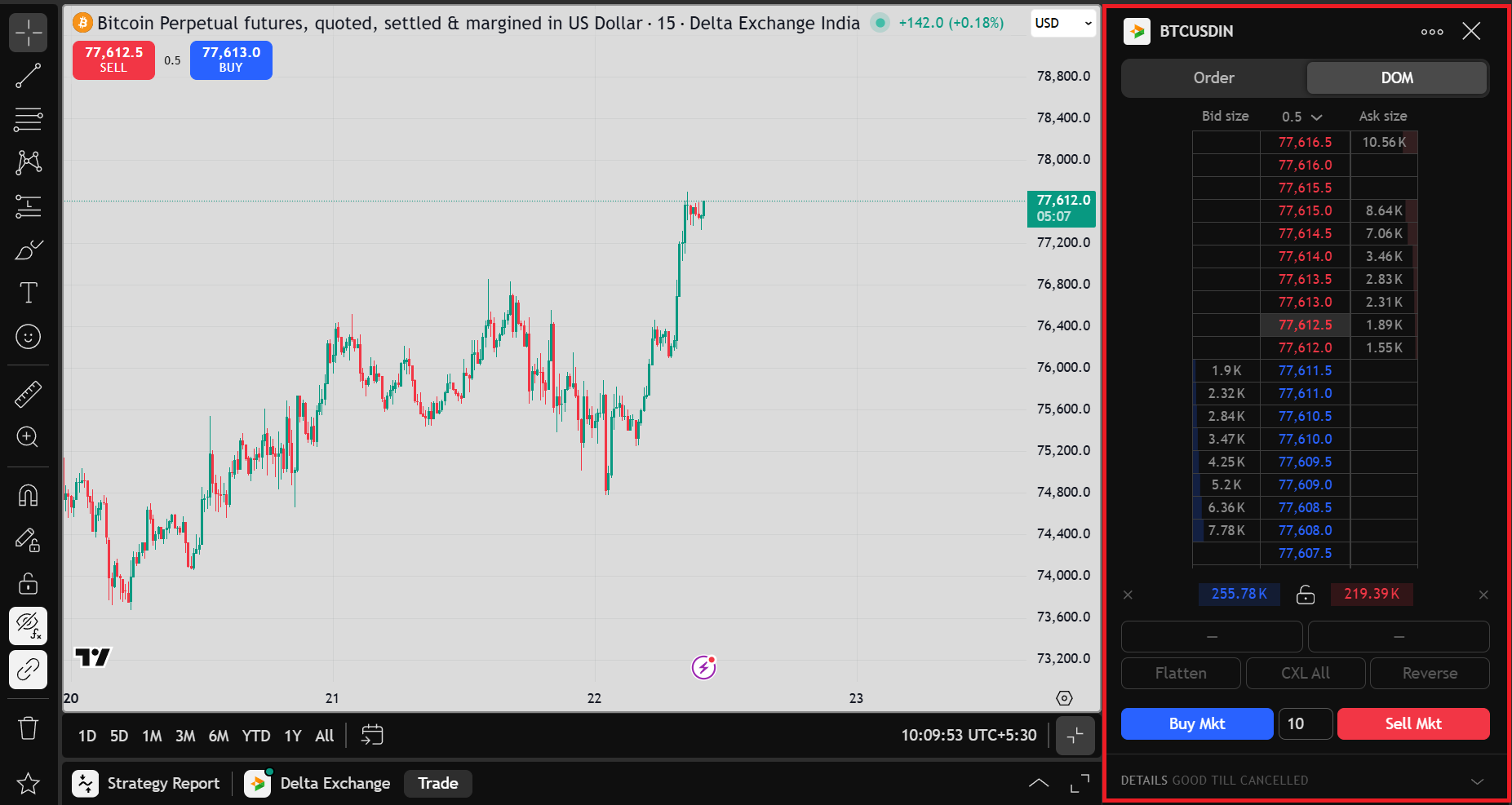
Fig 6. The DOM (Depth of Market) panel for BTCUSDIN — live bid/ask with volume
Reading the DOM
Ask side (sell orders) — Right column, displayed in red/orange
Bid side (buy orders) — Left column, displayed in blue/green
Price levels — Centre column
Volume — Quantity available at each price level (in USD)
Quick-Action Buttons
Below the order book, four buttons let you manage positions instantly:
Flatten — Close all open positions immediately
CXL All — Cancel all working orders
Reverse — Flip the direction of your current position
Buy Mkt / Sell Mkt — Place an immediate market order for the specified quantity
Note: The DOM updates in real time as the market moves. It is especially useful for identifying support and resistance levels based on where large order clusters are visible.
6. Trading Settings
Trading Settings let you customize how the integration looks and behaves. Access them by clicking the "Delta Exchange" dropdown in the bottom panel and selecting "Trading settings...".
General Settings
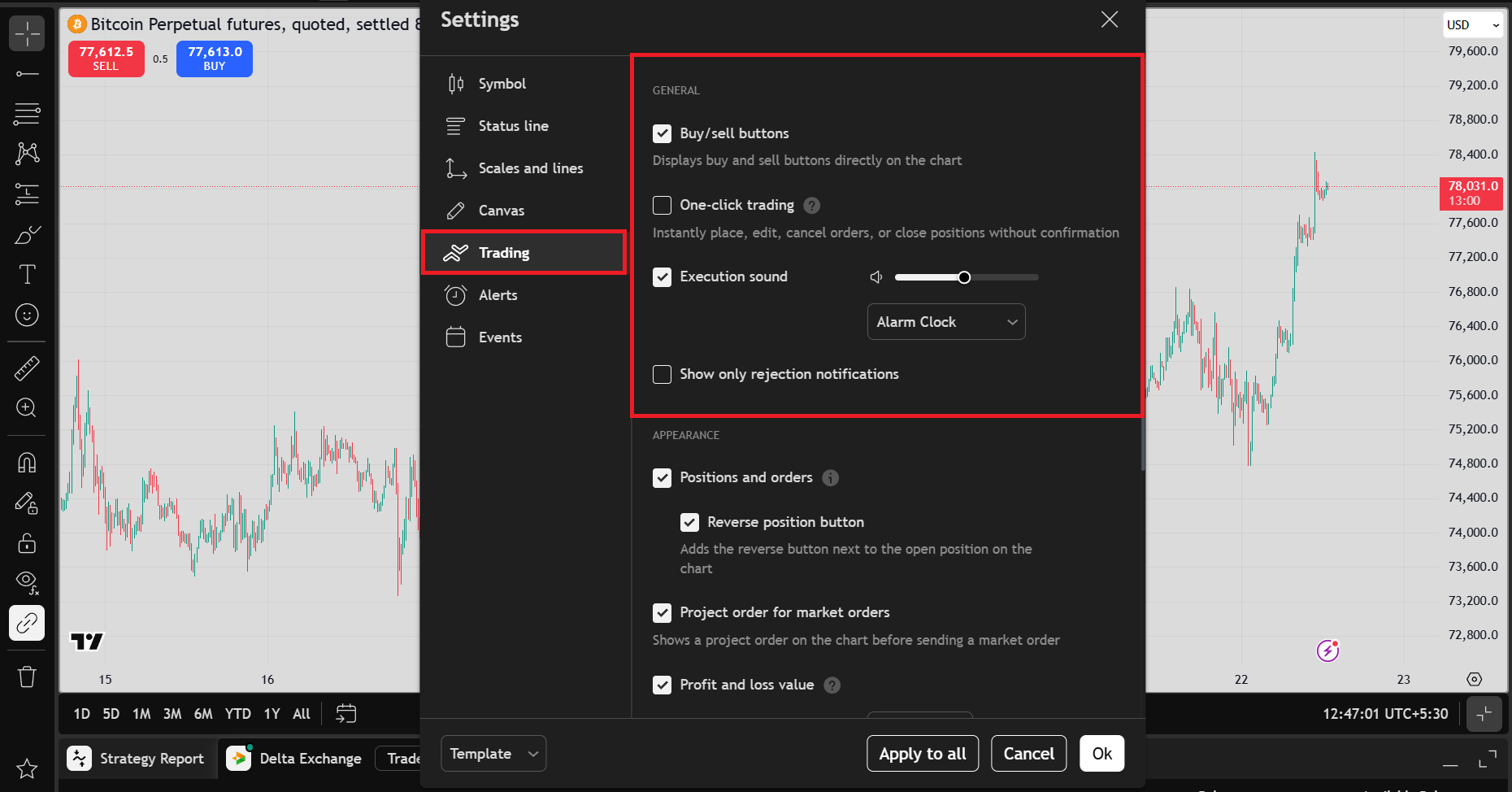
Fig 7. Trading Settings — General section
General settings control core trading behavior:
Buy/Sell Buttons — Displays quick Buy and Sell buttons directly on the chart (enabled by default).
One-Click Trading — When enabled, orders are placed, edited, and cancelled instantly without a confirmation step. Useful for experienced traders. Disabled by default.
Execution Sound — Plays an audio alert on order execution. Choose from presets (e.g., "Alarm Clock").
Show Only Rejection Notifications — Suppresses all non-critical notifications and shows only rejections, for a cleaner chart view.
Note: One-Click Trading removes the Confirm step from all chart-based order placements. Enable it only if you are confident in your order entry accuracy.
Appearance Settings
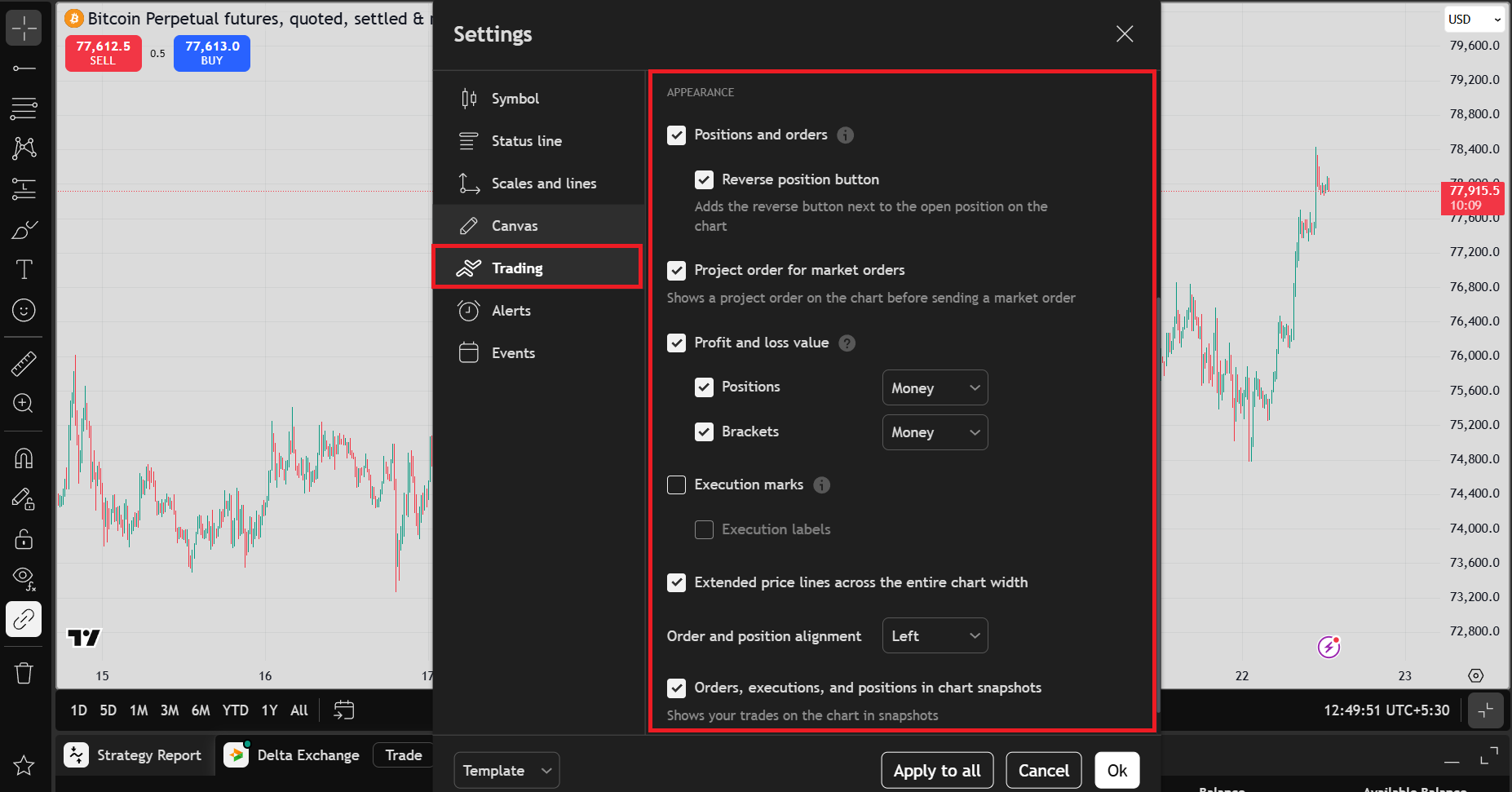
Fig 8. Trading Settings — Appearance section
Appearance settings control how orders and positions are shown visually on the chart:
Positions and Orders — Toggles order and position lines on the chart. When enabled, all open positions and working orders appear as draggable lines.
Reverse Position Button — Adds a one-click Reverse button next to any open position on the chart.
Project Order for Market Orders — Shows a projected line before you send a market order, so you can preview where it will execute.
Profit and Loss Value — Shows running P&L on the chart for positions and brackets. Choose between Money (USD) or Percentage display.
Execution Marks — Marks the exact price and time of each execution directly on the candlestick chart.
Execution Labels — Adds text labels to execution marks with full order details.
Extended Price Lines — Extends order and position lines across the full width of the chart for easier visual tracking.
Order and Position Alignment — Controls whether order labels are anchored to the Left or Right side of the chart.
Orders, Executions, and Positions in Chart Snapshots — When enabled, your trades appear in any chart snapshot you export or share from TradingView.
Tip: Use "Apply to All" to save your Trading Settings across all charts and instruments. Click "Ok" to save for the current chart only.
Summary
The Delta Exchange integration on TradingView brings the full power of Delta Exchange's futures trading directly into the world's most widely used charting platform. Whether you prefer placing orders through the right-click menu, dragging lines on the chart, or using the order panel, every workflow is designed to be fast and intuitive.
Here is a recap of everything covered in this guide:
Connect Delta Exchange as your broker from the TradingView Trade panel
Use the Order Panel to place Market, Limit, Stop, and Stop Limit orders
Place orders instantly via right-click context menu or by dragging lines on the chart
Attach Take Profit and Stop Loss brackets — and drag them to adjust levels visually
Monitor liquidity in the DOM panel before entering positions
Track all activity across the Positions, Orders, Order History, Account Summary, and Notifications Log tabs
Customize your trading experience with the full suite of Trading Settings options
Need Help?
If you face any issues during the integration process, feel free to contact our support team anytime. We’re here to assist you at every step of your trading journey.