Before making a deposit on Delta Exchange India, it is mandatory to complete your bank account verification. This ensures secure fund transfers and compliance with regulatory requirements.
To complete your bank verification, please refer to our guide: How to Add a Bank Account?
Depositing funds into your Delta account via UPI is fast, secure, and simple. Follow this easy step-by-step guide to complete your deposit smoothly.
1. Click on the ‘Add Funds’ button on the homepage to navigate to the Deposit section.

2. Begin by entering the amount you wish to deposit into your Delta trading account.
3. Select the UPI ID you'd like to use for the transaction.
i) You can add up to 10 UPI IDs to your Delta account.
ii) Make sure the UPI ID is whitelisted and linked to your registered bank account.
Important:
- Once a UPI ID is added, it cannot be deleted, so double-check before confirming.
- The UPI ID must belong to your registered (whitelisted) bank account only.
If you make a payment using a non-whitelisted bank account or UPI ID, the deposit will not be processed and the amount will be automatically refunded to your source account within 3 bank working days from the date the payment was made (excluding Saturdays, Sundays, and banking holidays).
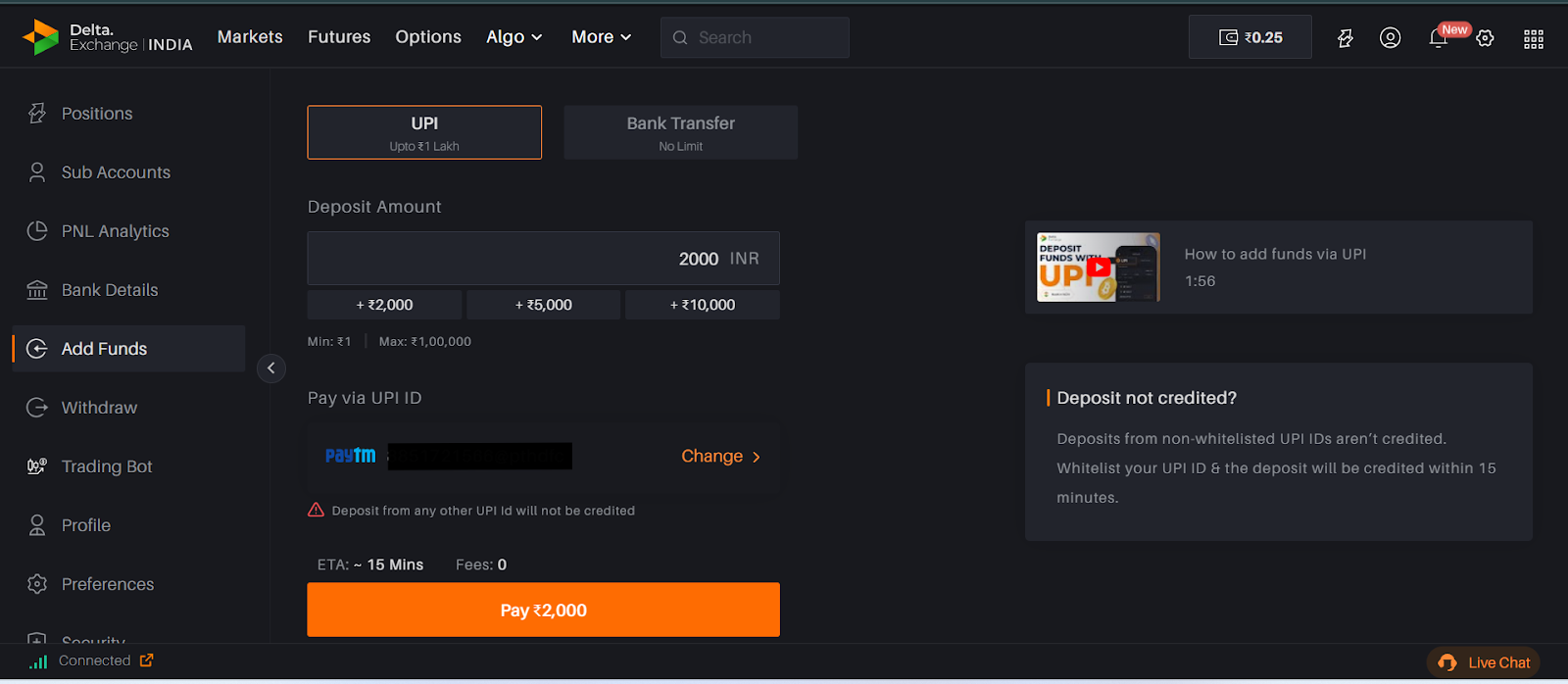
4. Use your preferred UPI app to complete the payment. If you are using a web browser, a QR code will appear on the screen that you can scan using your UPI app. If you are using the mobile app, tapping on ‘Pay ₹XXXX’ will automatically redirect you to your selected UPI app to complete the transaction using your registered UPI ID.
5. After completing the transaction in your UPI app, return to the Delta interface and click on “I have deposited” to confirm.
6. Once confirmed, your funds will be transferred to your Delta account within 15 minutes.
Tips for a Smooth Deposit Experience
Only use whitelisted UPI IDs that are linked to your bank account.
Avoid typos when adding your UPI ID, as you won’t be able to remove it later.
If your funds don’t reflect after 15 minutes, raise a support ticket through the Help section.
Deposits via credit card apps are not allowed. If you attempt this, the amount will be refunded, but it may take extra time to reflect. To avoid delays or issues, always use a whitelisted UPI ID linked to your bank account
Depositing via UPI is quick and hassle-free. Just follow the steps above, and you’re all set to trade.
Deposit Not Reflecting?
If your deposit doesn't appear in your wallet, contact our support team and share:
A screenshot of the payment
Include the UTR number, date, and time of the transaction.
Email: [email protected]
Raise a ticket: Submit Here